Documentation · v1.0.0
Build your hotel admin with HotelDash
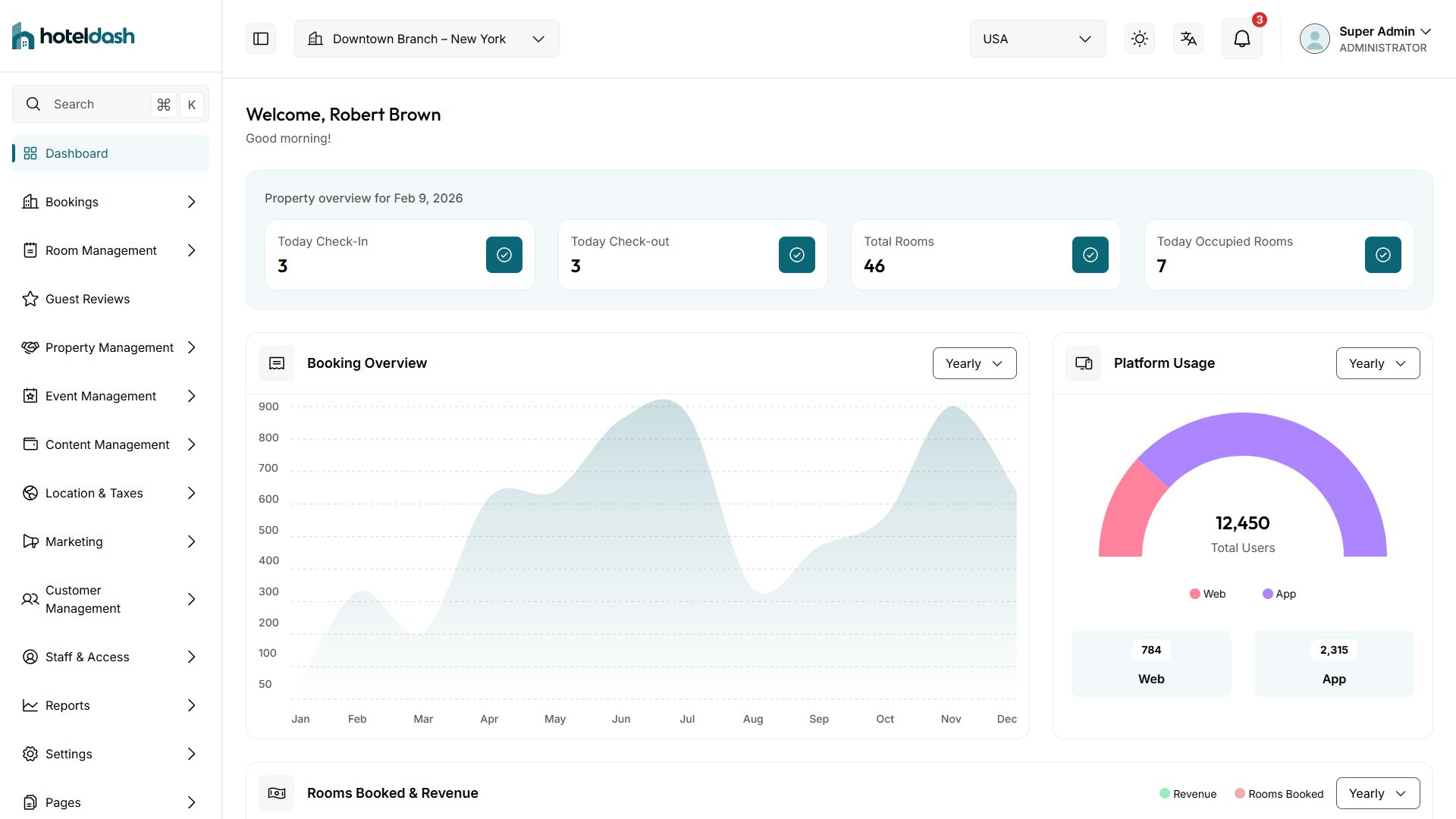
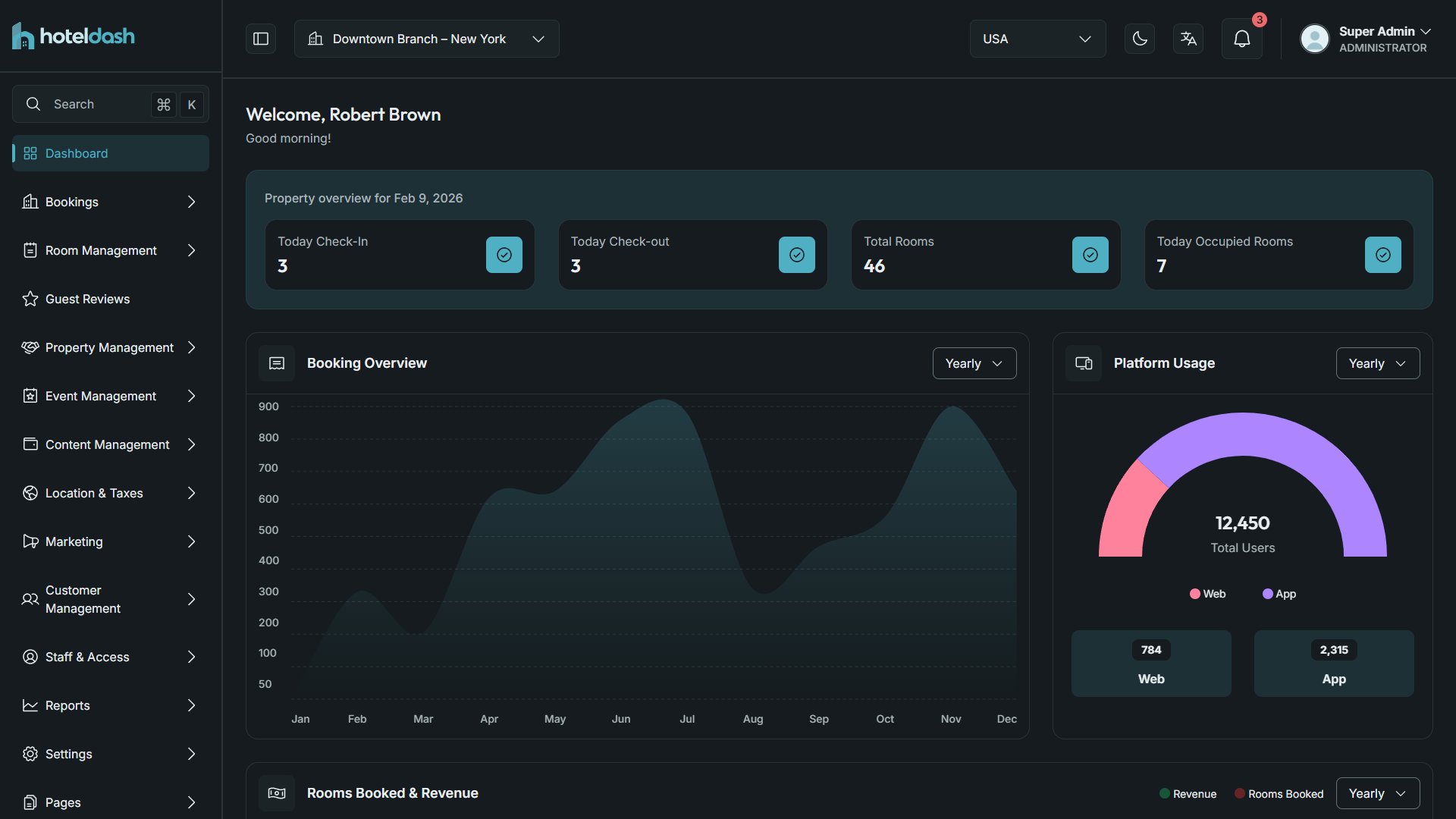
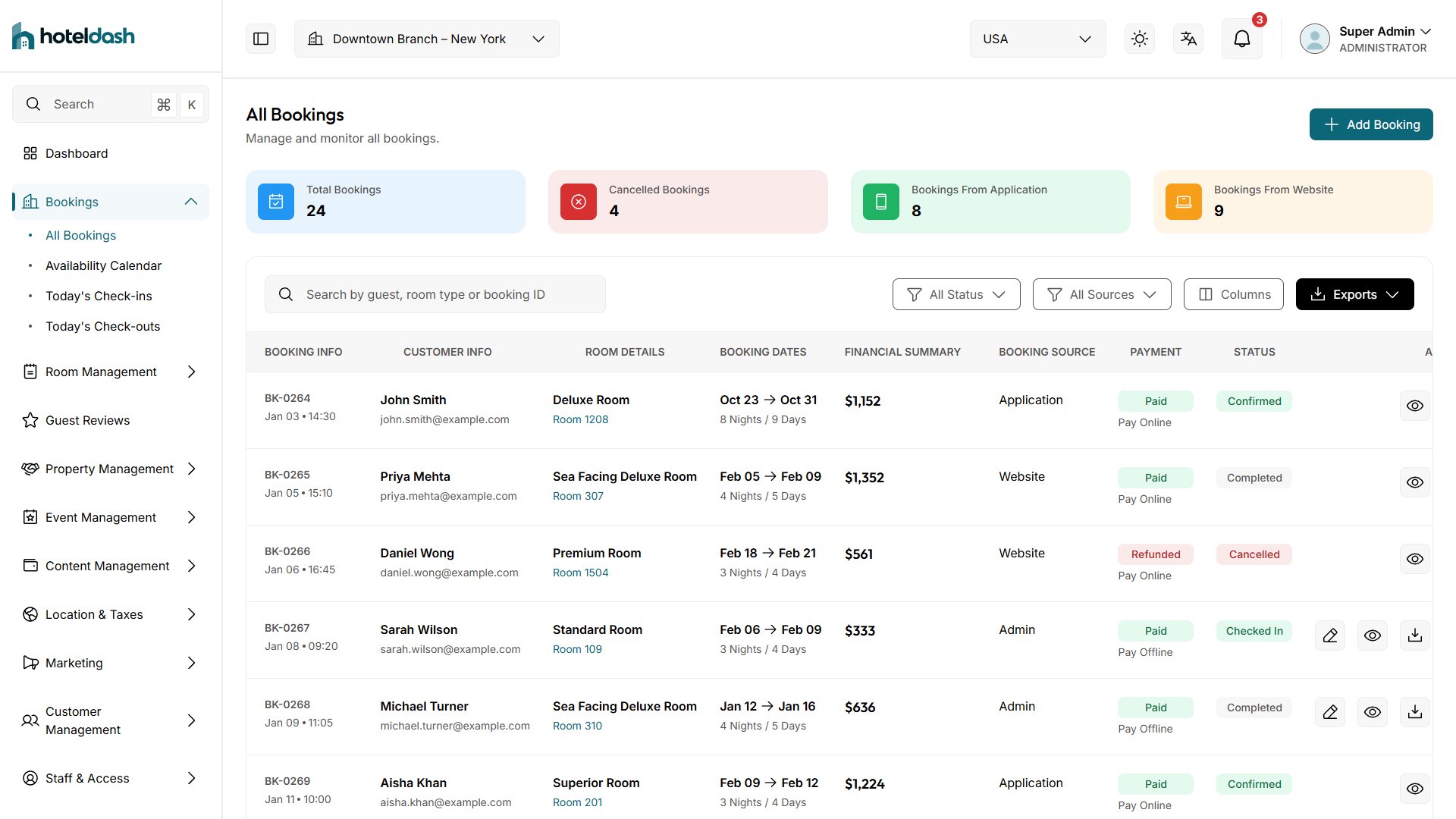
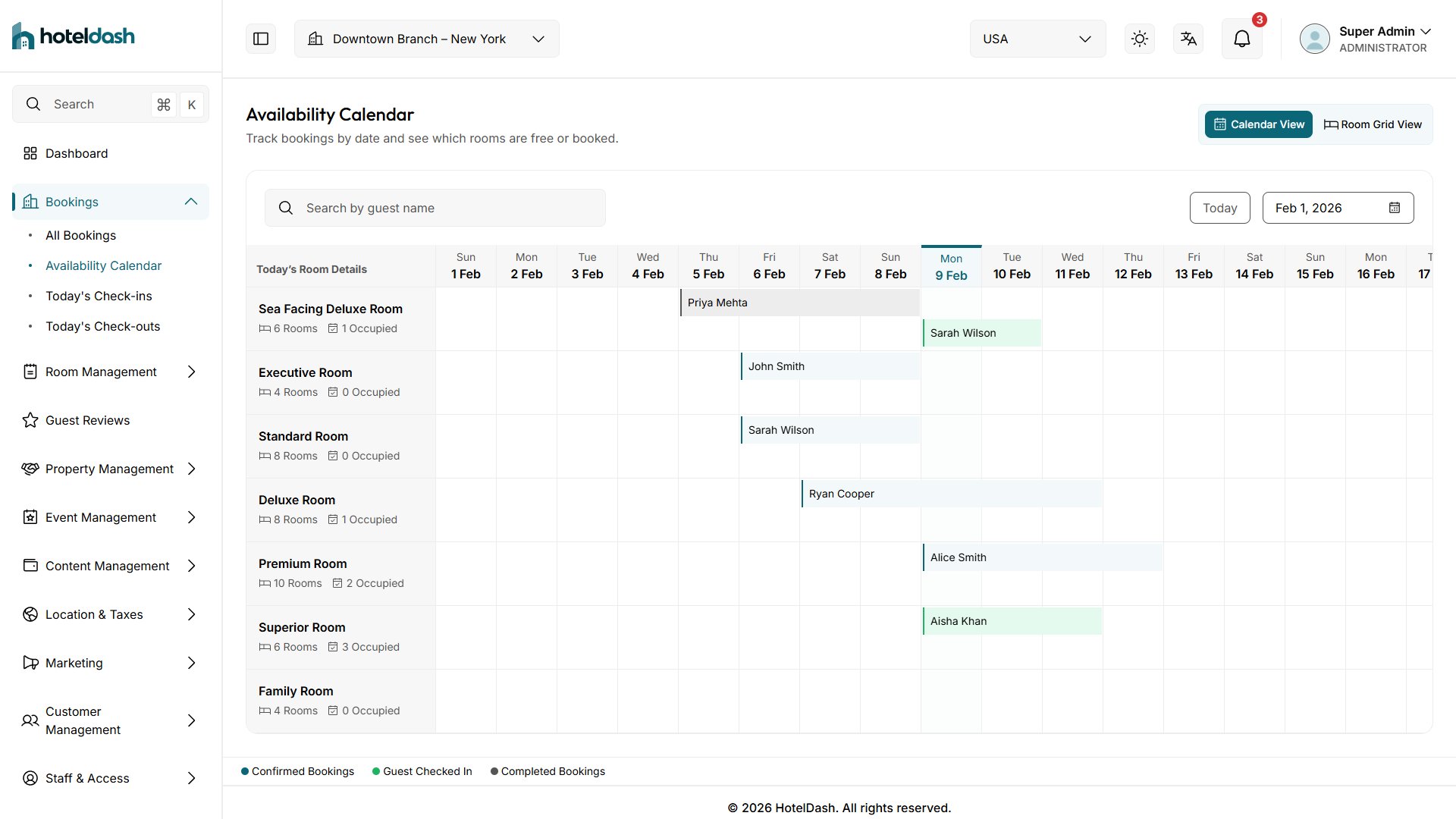
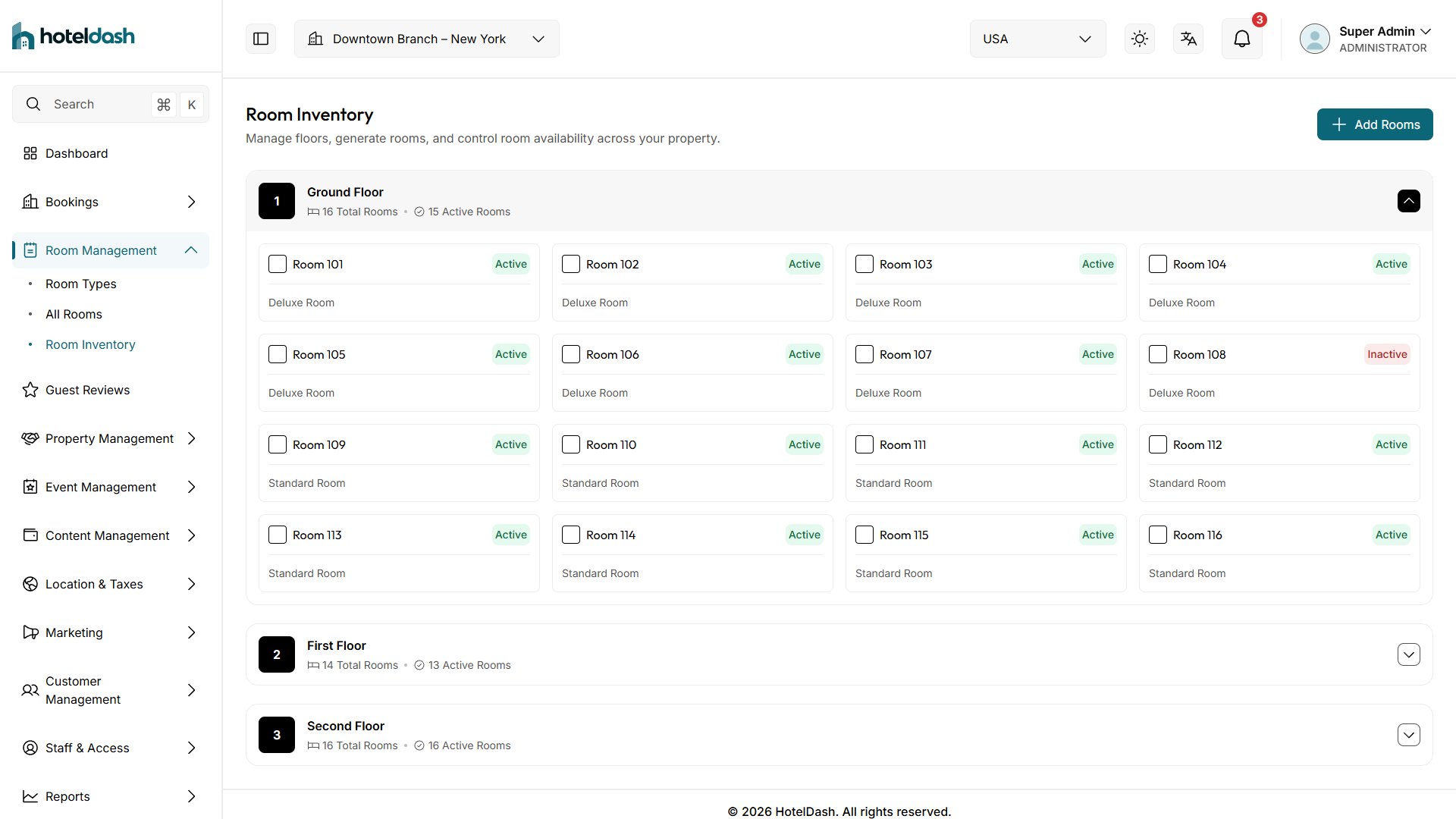
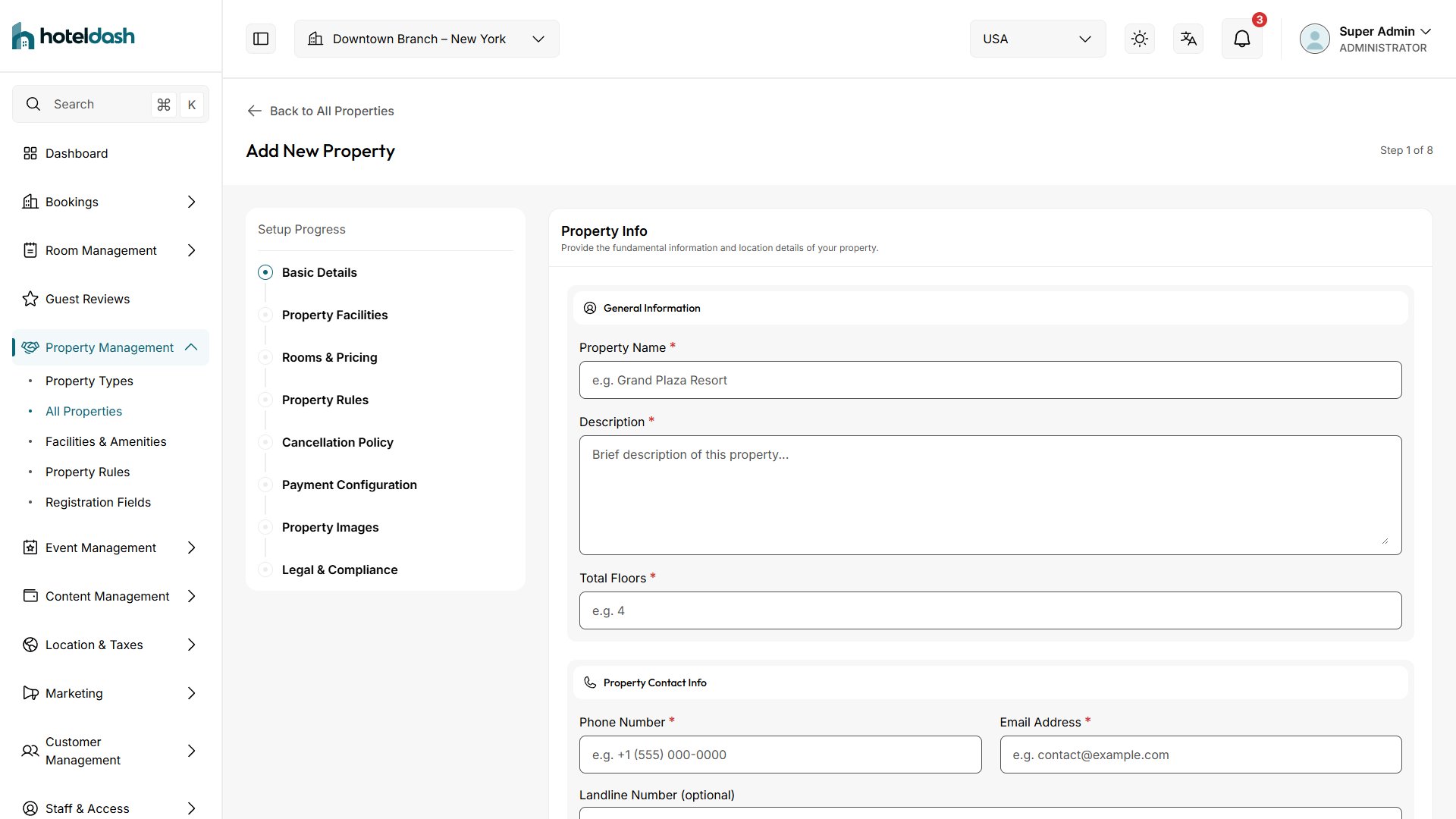
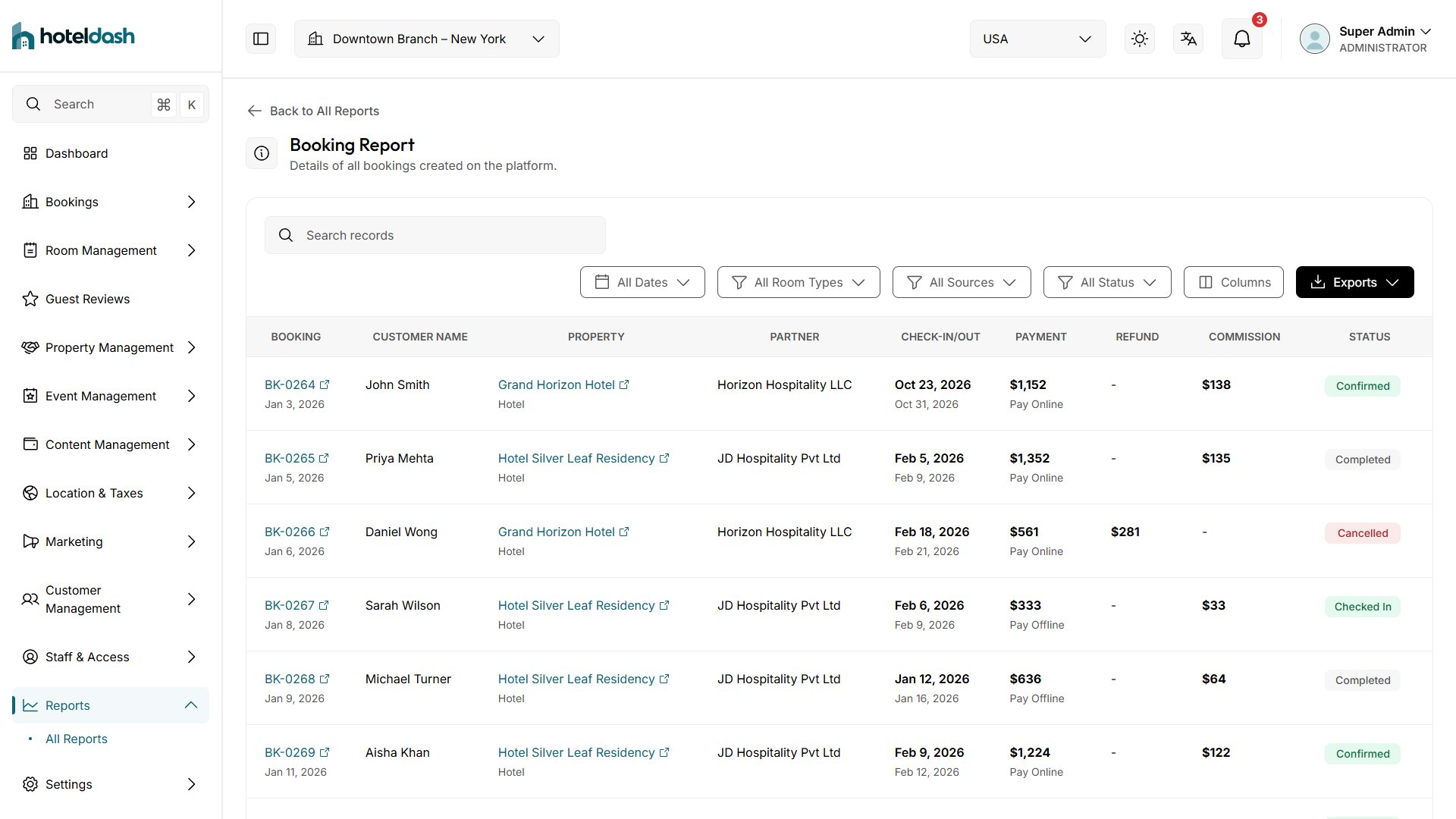
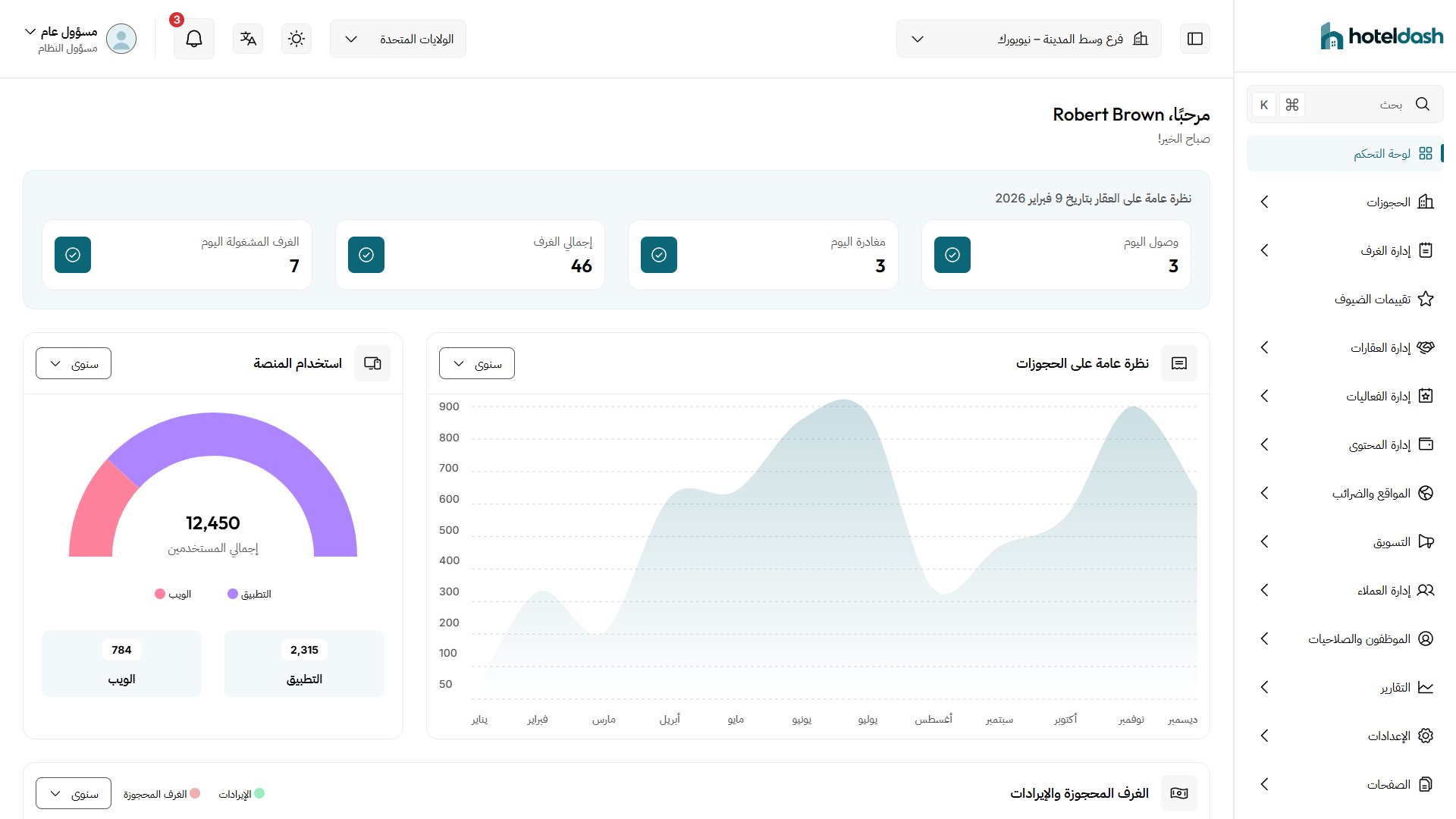
HotelDash is a hotel and multi-property admin dashboard template built with plain HTML, CSS and JavaScript. There is no framework, no build step and no package install. It has 76 ready pages: bookings, rooms, reviews, properties, events, content, locations, marketing, customers, staff, reports, settings, sign-in screens and onboarding.
- 76 pages
- 97 components
- HTML · CSS · JavaScript
- No build step
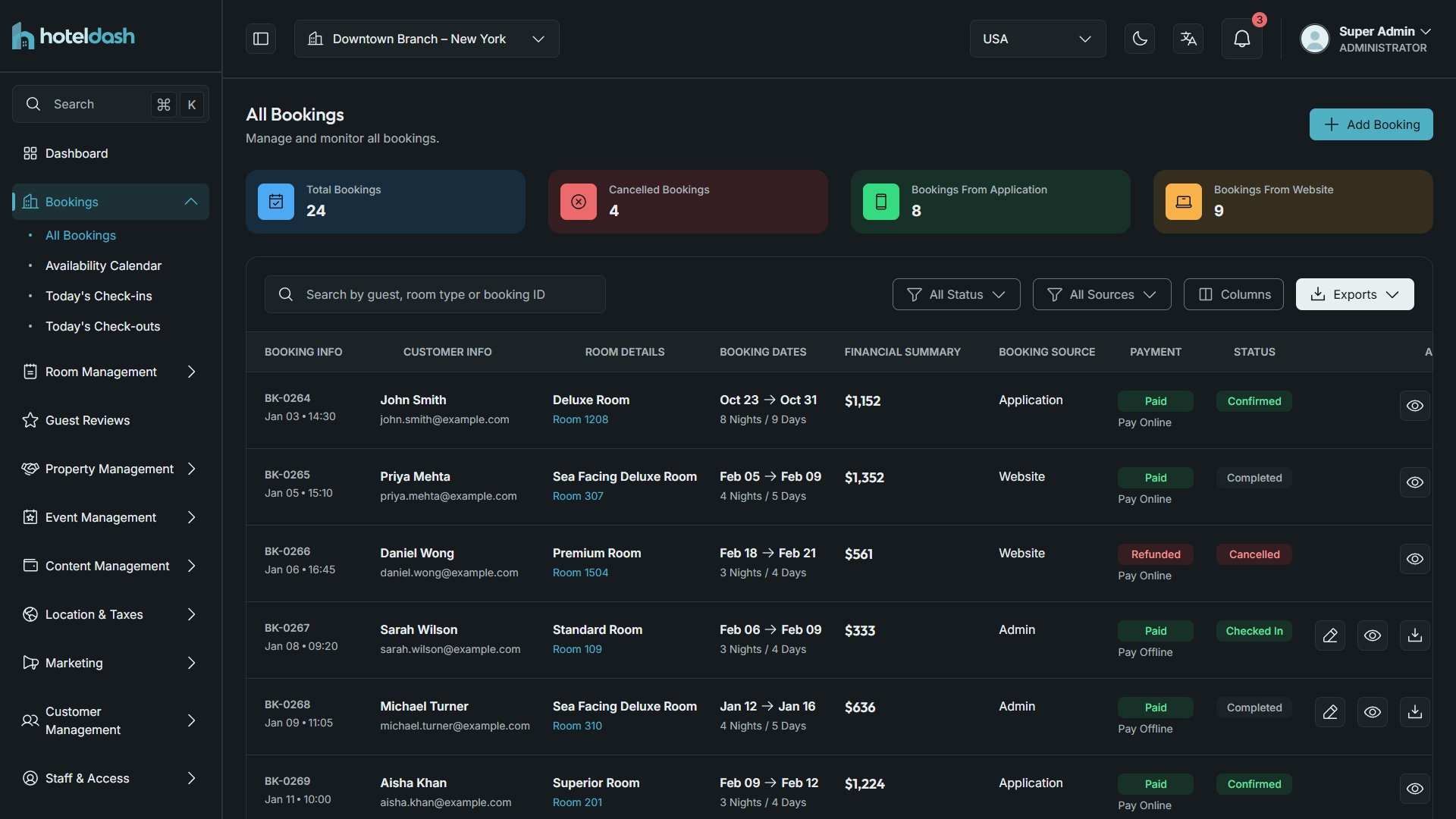
- Light · Dark · RTL
- English · Arabic
- API-ready
Live demo: hoteldash-ten.vercel.app · Online documentation: hoteldash-ten.vercel.app/documentation
Run HotelDash on a local web server. Pages opened by double-clicking (file://) cannot load their scripts, so they show a notice instead. See Installation: VS Code Live Server, npx serve or any static host.
Quick start
- 1
Unzip
Open the HotelDash-HTML folder.
- 2
Start a server
python -m http.server 8080 or npx serve .
- 3
Open it
Open the address the server shows, e.g. http://localhost:8080/. The Dashboard opens.
About HotelDash
Everything is built from one design system. Colors, fonts, spacing, radius and shadows are design tokens (CSS custom properties). Repeated interface parts are shared components. Data comes from service functions that return Promises, so you can connect a real API by changing one file per area.
This guide is for developers who did not build HotelDash. Each section answers one question: where a thing lives, and how to change it.
Getting Started
Requirements
- A current browser: Chrome, Edge, Firefox or Safari (see Browser Support).
- A local web server. Pages load their components and scripts as ES modules, which browsers block when a file is opened straight from disk (
file://).
- A code editor. No npm packages or build tools are needed to run the template. Node.js 18 or newer is needed only to rebuild the stylesheet after you change the CSS (
node build-css.mjs).
Getting Started
Installation
HotelDash must run on a local web server. If you double-click a page, it opens as file://: the browser blocks its scripts and the page shows a notice that tells you to use a server. Unzip the package first, then pick one of the options below. You do not need to know how to code.
The package holds four items:
HotelDash-HTML/: the template. This is the folder you open, serve and publish.Documentation/: this guide (index.html) and the same content as a PDF.Figma/: the Figma design file of HotelDash.READ ME FIRST.txt: a short start guide.
Option A: VS Code and Live Server (easiest)
- Download and install Visual Studio Code (free). Result: VS Code opens.
- Click the Extensions icon in the left bar (or press Ctrl+Shift+X / Cmd+Shift+X), search for Live Server (by Ritwick Dey) and click Install. Result: a “Go Live” button appears in the bottom bar.
- Choose File → Open Folder… and pick the
HotelDash-HTML folder (the one that holds index.html). Result: the files are listed on the left.
- Right-click
index.html and choose Open with Live Server. Result: your browser opens the Dashboard, usually at http://127.0.0.1:5500/.
Live Server reloads the page when you save a file. Keep VS Code open while you work.
Option B: Node.js
- Download the LTS version from nodejs.org and install it with the default settings. Result: the
node and npx commands work in a terminal.
- Open a terminal in the
HotelDash-HTML folder. Windows: open the folder in File Explorer, type cmd in the address bar and press Enter. macOS: right-click the folder in Finder and choose New Terminal at Folder. Result: a terminal window opens in that folder.
- Run this command. The first time, answer
y if it asks to install serve:
npx serve .
Result: it prints a local address, for example http://localhost:3000.
- Open that address in your browser. Result: the Dashboard opens.
Press Ctrl+C in the terminal to stop the server.
Option C: Python
- Python 3 is already installed on macOS and most Linux computers. On Windows, install it from python.org and tick Add python.exe to PATH.
- Open a terminal in the
HotelDash-HTML folder (see Option B) and run:
python -m http.server 8080
On macOS and Linux the command may be python3. Result: it prints “Serving HTTP on … port 8080”.
- Open
http://localhost:8080/ in your browser. Result: the Dashboard opens.
Python's server is fine for a quick look but can drop files under load (see FAQ). For daily work use Option A or B. Any other static server works too, for example php -S localhost:8080.
To publish, upload the whole HotelDash-HTML folder to any static host (Netlify, Vercel, GitHub Pages, Apache, Nginx, S3). No server-side code is needed. Then change the share links to your domain (see Share images).
Getting Started
Common Tasks
Short recipes for the changes most buyers make first. Each one links to the full section.
Change the brand color
- Open
assets/css/tokens/colors.css.
- Replace the
--color-primary-50 … --color-primary-950 values with your palette.
- Set the lighter dark-theme brand colors in
assets/css/tokens/theme-dark.css.
- Run
node build-css.mjs and reload. Buttons, links, tabs, charts and the sidebar follow.
More on customization
Add a new page
- Copy
pages/blank-page.html into a section folder, e.g. pages/rooms/.
- Fix the
../ depth of the CSS and JS links.
- For page scripts, set
<body data-module="my-page"> and create assets/js/modules/my-page.js with export function init() {}.
- Add a sidebar link (next recipe).
More on page structure
Add a menu item
- Open
components/layout/sidebar.html.
- Copy an existing
<li class="sidebar__group"> block and change the link, icon and label.
- Every page picks up the change; the current page is highlighted for you.
More on navigation
Connect your API
- Find the service the page uses in
assets/js/services/.
- Replace the function body with a
fetch() call that returns the same data shape.
- Throw on errors; the page shows its error state and a Try again button.
More on API integration
Use another icon
- Find the icon on phosphoricons.com.
- Write
<hd-icon name="icon-name"></hd-icon>. No download or import needed.
More on icons
Change the fonts
- Put the WOFF2 file in
assets/fonts/.
- Update
@font-face in assets/css/base/typography.css.
- Set
--font-family-heading and --font-family-body in assets/css/tokens/typography.css.
More on typography
Start in dark mode or Arabic
- Open
assets/js/theme-boot.js.
- Give the saved value a default:
read('theme') || 'dark' or read('lang') || 'ar'. Arabic also turns the layout right to left.
- Visitors can still change it with the header menus.
More on languages
Replace the logo
- Save your logo as
assets/icons/custom/logo.svg (keep a viewBox).
- Save your browser-tab icon as
assets/icons/favicon.svg.
More on customization
Preview empty, loading and error states
- Add
?state=empty, ?state=loading or ?state=error to any page URL.
- Open
pages/components.html to see every component at once.
More on UI states
Use a component
- Find it in
pages/components.html: pick it in the side list, or press / and type its name.
- Copy its markup into your page. Its script loads by itself when the page uses it.
- Check the options in the Components section of this guide.
More on components
Publish the template
- Upload the whole
HotelDash-HTML folder to any static host.
- No build step and no server-side code are needed.
- Point the share links (
og:, twitter:, canonical) at your domain.
More on installation
Getting Started
Folder Structure
HotelDash-HTML/
├── index.html                 Opens the Dashboard
├── pages/                     One HTML file per screen, grouped like the sidebar
│   ├── auth/                  Login, forgot password, OTP, two-factor, new password
│   ├── onboarding/            First-run setup (region, property type)
│   ├── dashboard/             Dashboard, notifications, admin profile
│   ├── bookings/  rooms/  reviews/  property/  events/  content/
│   ├── location/  marketing/  customers/  staff/  reports/  settings/
│   ├── components.html        Every component and state on one page
│   ├── blank-page.html        Starter page for new screens
│   └── 404.html
├── components/                Reusable HTML templates (loaded with data-component)
│   ├── layout/                Sidebar, header, footer, header dropdowns
│   ├── cards/  charts/  forms/  tables/  overlays/  feedback/
│   └── hotel/  rooms/  navigation/  status/
└── assets/
    ├── css/
    │   ├── style.css          The stylesheet pages link (built from main.css, readable)
    │   ├── style.min.css      The same rules minified, for production
    │   ├── main.css           Imports every source file in order (the source of both)
    │   ├── tokens/            Design tokens: colors, typography, spacing, radius, shadows, layout,
    │   │                      icon masks, dark theme (theme-dark.css)
    │   ├── base/              Reset, global rules, font faces, motion
    │   ├── layout/            App shell, sidebar, header, footer, auth, responsive helpers
    │   ├── components/        Buttons, inputs, tables, modals, charts…
    │   ├── patterns/          Page header, stat cards, states, checklists…
    │   ├── modules/           Styles for one area only (dashboard, reports…)
    │   └── utilities/         Small single-purpose helpers (display, spacing, text tones, print)
    ├── js/
    │   ├── theme-boot.js      Applies the saved theme and language before the page paints
    │   ├── file-notice.js     Shows a notice when a page is opened from disk (file://)
    │   ├── app.js             Boots every page
    │   ├── core/              Component loader, icons, theme (theme.js), languages (i18n.js),
    │   │                      demo date (demo-date.js), DOM helpers, events, storage, workspace,
    │   │                      UI states, PWA
    │   ├── components/        Interactive parts: table, charts, modal, select, date picker…
    │   ├── modules/           One file per page (named in <body data-module>)
    │   │   └── shared/        Code used by several pages: table columns, form modals, images,
    │   │                      hash router, not-found states, booking and room views…
    │   ├── services/          Data access. Replace these with API calls
    │   └── utils/             Dates, money, CSV, PDF invoice, slugs, statuses
    ├── data/                  Demo data used by the services
    ├── i18n/                  Translations: ar/ holds the Arabic dictionary (index.js and five area files)
    ├── fonts/                 Inter and Outfit (variable WOFF2), IBM Plex Sans Arabic (ibm-plex-sans-arabic/)
    ├── icons/                 favicon.svg and custom/ (logo, flags, property types)
    ├── images/                Image placeholders (replace with your photos)
    └── libs/                  Phosphor icons and Quill editor (bundled locally)
Where is…?
| Question | Answer |
|---|
| The page | pages/<sidebar section>/<page>.html |
| The component | components/<group>/<name>.html. The full list is in assets/js/core/component-loader.js (COMPONENT_PATHS). |
| The style | assets/css/components/ for shared parts, assets/css/modules/ for one area |
| The page JavaScript | assets/js/modules/<data-module>.js |
| The data | assets/data/, read through assets/js/services/ |
| The tokens / theme | assets/css/tokens/ |
| The dark theme colors | assets/css/tokens/theme-dark.css |
| The theme and language menus | assets/js/core/theme.js, assets/js/core/i18n.js, assets/js/theme-boot.js, components/layout/header.html |
| The translations | assets/i18n/ar/ (Arabic) |
| The demo “today” | assets/js/core/demo-date.js |
| The API integration point | assets/js/services/*-service.js |
| The navigation | components/layout/sidebar.html |
Building
HTML Structure
Every app page uses the same shell. Copy pages/blank-page.html to start a new one.
<!doctype html>
<html lang="en">
  <head>
    <meta charset="utf-8">
    <meta name="viewport" content="width=device-width, initial-scale=1">
    <meta name="description" content="All Bookings — HotelDash hotel admin dashboard template.">
    <meta property="og:title" content="All Bookings — HotelDash">
    <meta property="og:url" content="https://hoteldash-ten.vercel.app/pages/bookings/all-bookings.html">
    <meta property="og:image" content="https://hoteldash-ten.vercel.app/assets/images/og/bookings-all-bookings.jpg">
    … more og: and twitter: tags …
    <script src="../../assets/js/file-notice.js" defer></script>
    <title>All Bookings — HotelDash</title>
    <link rel="canonical" href="https://hoteldash-ten.vercel.app/pages/bookings/all-bookings.html">
    <link rel="icon" href="../../assets/icons/favicon.svg" type="image/svg+xml">
    <link rel="manifest" href="../../manifest.webmanifest">
    <link rel="apple-touch-icon" href="../../assets/icons/app/apple-touch-icon.png">
    <meta name="theme-color" content="#0b6678">
    <script src="../../assets/js/theme-boot.js"></script>   <!-- before the stylesheet: no flash -->
    <link rel="stylesheet" href="../../assets/css/style.css">
    <script type="module" src="../../assets/js/app.js"></script>
  </head>
  <body data-module="all-bookings">           <!-- loads assets/js/modules/all-bookings.js -->
    <noscript>…</noscript>
    <a class="skip-link" href="#main">Skip to content</a>
    <div class="app">
      <div data-component="sidebar"></div>
      <div class="app__content">
        <div data-component="header"></div>
        <main class="app__main" id="main" tabindex="-1">
          … page content …
        </main>
        <div data-component="footer"></div>
      </div>
    </div>
  </body>
</html>
- Keep
theme-boot.js as a plain script (no defer, no type="module") before the stylesheet. It sets the saved theme and language (and with it the direction) before the first paint, so a dark or Arabic page never flashes in the default look.
file-notice.js only runs on file://. You can delete it and its <script> tag once the site is online.- The
og:url, og:image, twitter:image and canonical links are full addresses on the demo domain https://hoteldash-ten.vercel.app. Change them to your domain (see Share images).
Using a component
Put a placeholder where the component goes. data-props is JSON. The loader replaces the placeholder with the rendered template.
<div data-component="empty-state"
     data-props='{"icon": "bed", "title": "No Rooms Yet", "text": "Add your first room to start taking bookings."}'></div>
Template syntax
| Syntax | Meaning |
|---|
{{name}} | Value from data-props, HTML-escaped |
{{#name}}…{{/name}} | Kept only when the prop is set and not false |
{{^name}}…{{/name}} | Kept only when the prop is empty or false |
{{slot}} | The placeholder's own inner HTML |
{{slot:footer}} | Inner HTML of <template data-slot="footer"> inside the placeholder |
{{root}} | Project root URL, for links that work from any folder depth |
JavaScript can render the same templates: await renderComponent('status-badge', { label: 'Paid', tone: 'success' }).
Adding a new component
- Create
components/<group>/<name>.html.
- Add
'<name>': 'components/<group>/<name>.html' to COMPONENT_PATHS in assets/js/core/component-loader.js.
- Put its styles in
assets/css/components/ and import the file in main.css if it is new, then run node build-css.mjs.
Adding a new page
- Copy
pages/blank-page.html into the right section folder and fix the ../ depth of the asset links.
- If the page needs JavaScript, set
<body data-module="my-page"> and create assets/js/modules/my-page.js exporting init().
- Add a link to
components/layout/sidebar.html (see Navigation).
Building
CSS Architecture
Pages link one file, assets/css/style.css. It is built from assets/css/main.css, which imports the source files in this order, so later layers can build on earlier ones:
- tokens: design tokens only (custom properties on
:root): colors, typography, spacing, radius, shadows, layout, icons (icon masks for checks and carets), then theme-dark, which remaps the color roles for the dark theme.
- base: reset, global element rules,
@font-face, entrance animations.
- layout: app shell, sidebar, header, footer, auth and onboarding layouts, responsive helpers.
- components: buttons, inputs, selects, tables, modals, charts and other shared parts.
- patterns: groups of components used on many pages (page header, stat cards, states).
- modules: styles used by one area only.
- utilities: small single-purpose classes: display, spacing, text tones (
.text-success, .text-warning, .text-error), responsive helpers, print.
Editing styles
Edit the source files (for example assets/css/components/buttons.css), then rebuild from the HotelDash-HTML folder:
node build-css.mjs
It needs only Node.js 18 or newer, no packages. It writes two files with the same rules:
| File | Use |
|---|
assets/css/style.css | Readable, with a comment before each source file. The pages link this one. |
assets/css/style.min.css | Minified (no comments or extra spaces), about a quarter smaller. Link it in production if you like. |
To use the minified file, replace style.css with style.min.css in the <link rel="stylesheet"> of every page (a find and replace in your editor), and in the file list at the top of sw.js.
While you work you can link assets/css/main.css instead: it loads the same files one by one, so changes show on reload without a rebuild. Switch back to style.css or style.min.css before you publish, because one file loads much faster.
Right-to-left
Styles use logical properties (margin-inline-start, padding-inline-end, inset-inline-start, text-align: start), so the layout mirrors on its own in RTL. Use them in new styles too. See Dark Mode & RTL.
Naming
Class names follow BEM: .block, .block__element, .block--modifier. States use .is-* (.is-active, .is-invalid, .is-loading). JavaScript hooks use data-* attributes, never style classes, so you can rename classes without breaking behaviour.
<button class="btn btn--primary btn--sm">Save</button>
<span class="badge badge--success">Paid</span>
Rules
- Use tokens for every color, size, radius, shadow and duration:
padding: var(--space-4), not 16px.
- For colors use the semantic tokens (
--color-surface, --color-text, --color-border…), not the scales. Then the dark theme works with no extra rules.
- Put new shared styles in
components/ or patterns/. Put styles for one page area in modules/.
- Mobile rules live next to the component they change, inside the shared breakpoints (see Responsive Behavior).
Building
JavaScript Architecture
All JavaScript is native ES modules. There is no bundler: the browser loads each file when it is imported.
Boot sequence (assets/js/app.js)
Before it runs, assets/js/theme-boot.js in the <head> has already set the saved theme, language and direction.
- Restore the saved sidebar state (expanded or collapsed).
- Load the language (
assets/js/core/i18n.js). In Arabic, the page and everything added to it later is translated.
- Load every
data-component placeholder.
- Start the layout (sidebar, header with the theme and language menus) and shared interactions: modals, dropdowns, selects, tabs, date pickers, wizards, uploads, galleries, collapsible sections, rich text editors, password toggles, character counters.
- Import
assets/js/modules/<data-module>.js and call its init().
Layers
| Folder | Holds | Rule |
|---|
core/ | Component loader, <hd-icon>, theme (theme.js), languages (i18n.js), demo date (demo-date.js), DOM helpers, event bus, focus trap, storage, workspace, UI state | No page knowledge |
components/ | Reusable behaviour: DataTable, charts, modal, toast, select, date picker, tabs… | Configured by options, never by page names |
modules/ | One file per page. Wires components to services. | No data of its own. Shared page code lives in modules/shared/ |
services/ | Every read and write of data. Returns Promises. | The only layer that touches assets/data/ |
utils/ | Pure helpers: dates, money, CSV export, PDF invoices, slugs, status tones, motion | No DOM state |
A page module
// assets/js/modules/customers.js
import { createDataTable } from '../components/table.js';
import { cells } from '../components/table-cells.js';
import { getCustomers } from '../services/customers-service.js';

export async function init() {
  await createDataTable(document.querySelector('#customers-table'), {
    id: 'customers',
    search: 'Search by Name',
    searchKeys: ['name', 'email'],
    fetchRows: getCustomers,
    columns: [
      { key: 'name', label: 'Customer', sortable: true, render: (row) => cells.stack(row.name, row.email) },
      { key: 'status', label: 'Status', render: (row) => cells.status(row.status) },
    ],
  });
}
Shared page helpers (assets/js/modules/shared/)
| File | Exports | Use |
|---|
images.js | setExistingImages, collectImages, firstImage, imageValue, iconMarkup | Show stored images in a file upload and read back what to save: the stored path, or the in-browser preview of a new file. |
form-modal.js | openFormModal, createModalSteps, setDateValue, updatePhotoCount, createChipList | Add / edit modals: reset the form, set title and button label, fill the fields, then open. Step panels inside a modal. |
hash-router.js | createHashRouter | List + editor pages (Staff, Roles, Legal Policies, Blogs) switch views with #create, #edit=ID, #view=ID. |
detail-state.js | showNotFound, showLoadError | Not-found and load-error states for detail pages opened with ?id=…, with a link back to the list. |
fetch-once.js | reuseFirst | One request that feeds two things on first load (a filter menu and the table rows). |
columns.js | Column definitions | Table columns used on more than one page. |
Building
Components
Open pages/components.html to see every component with its variants and states. The side list groups them (Foundations, Actions, Form controls, Date & time, Form patterns, Navigation, Overlays, Feedback, Data display, Charts, Hotel, Advanced). Each group opens and closes from its heading, Expand all / Collapse all sits above the list, and the open groups are remembered in the browser; the group of the open component is always shown. Search it with /; groups with matches open while you search. Search also finds other names for a component (select2, listbox, dropzone). Each component has its own view and link: components.html#date-picker; one example inside it: components.html#button/states.
Every example has a Preview and a Code tab. The Code tab shows the example's HTML and, when the component needs it, the few lines of JavaScript that start it, with a Copy button. Copy both into your page: the HTML into the page, the JavaScript into its page module (assets/js/modules/<page>.js); the imports already use the right paths. Under the examples, each component lists its classes, options and events (API), its accessibility notes and related components.
Adding a component to the components page
- Write its examples in a new file
components/showcase/<group>/<slug>.html. Each <template data-example id="…" data-title="…" data-desc="…"> is one example; a <script type="text/plain" data-init> inside it is its JavaScript (it runs for the demo and appears in the Code tab). Optional <template data-api> and <template data-a11y> hold the API table and notes.
- Add one entry to
assets/js/modules/showcase/registry.js: slug, title, group, desc, file, and optional aliases (other names), related, usedIn, status: 'new' (a “New” badge) and wide.
- Reload: the side list, search, previous / next links and the view are built from the registry.
HTML components (components/)
| Group | Components |
|---|
| layout | sidebar, header, footer, notification-dropdown, admin-dropdown |
| cards | stat-card, summary-card, kpi-card, report-card, setup-card, task-card |
| charts | chart-card, area-chart, bar-chart, hbar-chart, gauge-chart, donut-chart |
| forms | input, select, search-input, date-picker, file-upload |
| tables | data-table |
| overlays | modal, confirmation |
| feedback | empty-state, error-state, loading, alert |
| hotel | room-card, room-grid-card, room-inventory-card, facility-card, amenity-card, rule-card, testimonial-card, how-it-works-card, booking-summary, customer-info |
| other | pagination, status-badge, room-type-modal |
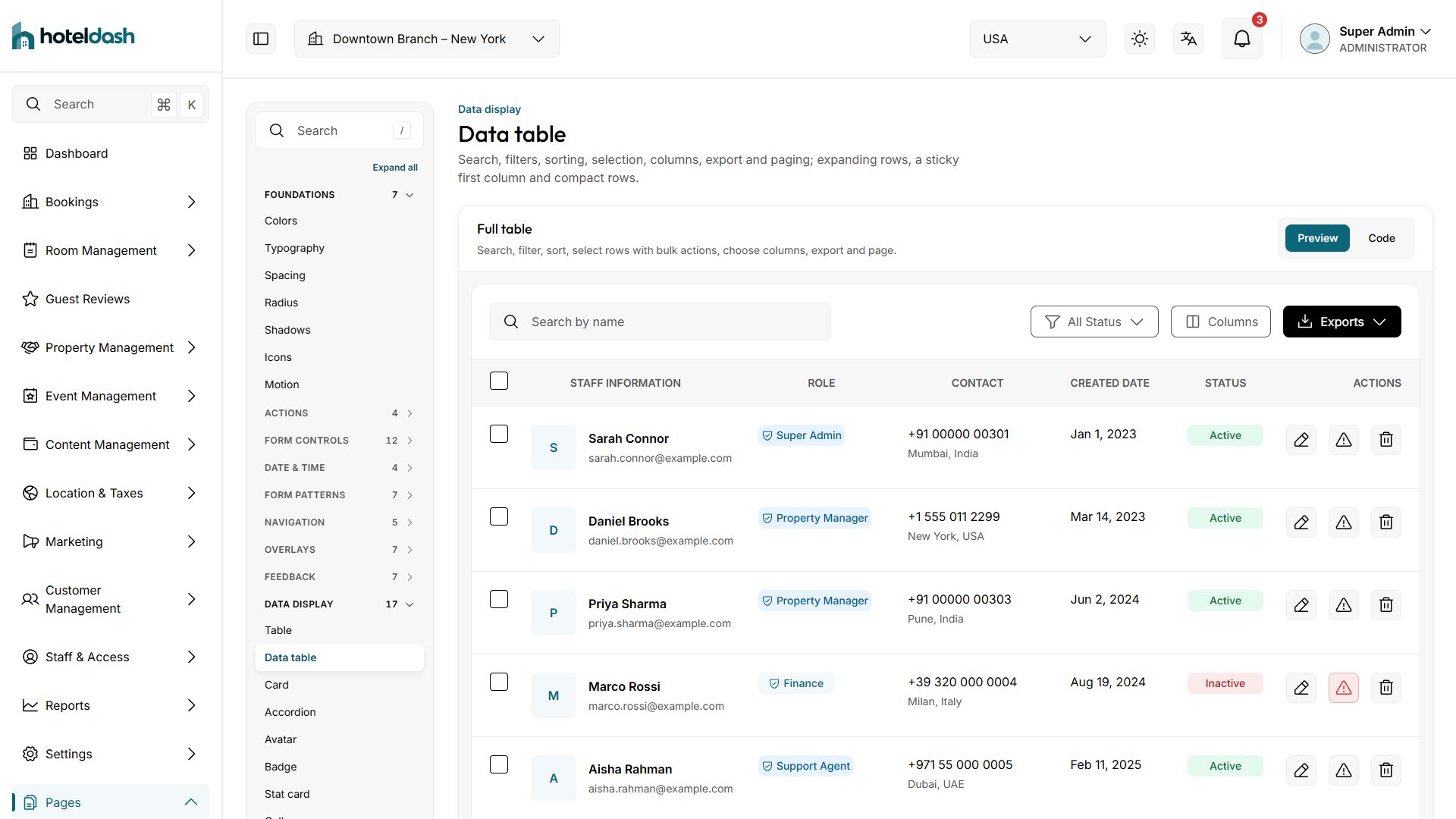
DataTable (assets/js/components/table.js)
Search, filters, sorting, paging, row selection with bulk actions, column visibility, CSV export, totals row, and stacked cards on mobile.
const table = await createDataTable(container, {
  id: 'bookings',                          // unique; used for ids and the export file name
  search: 'Search by Name',
  searchKeys: ['guest', 'email'],
  filters: [{ key: 'status', label: 'Status', options: [...] }],
  columns: [{ key, label, width, sortable, render(row), text(row), align,
              mobileLabel, mobileHidden, mobileOrder, mobileInline }],
  fetchRows: getBookings,                  // any function returning a Promise of rows
  pageSize: 10,
  selectable: true,
  bulkActions: [{ action: 'delete', label: 'Delete' }],
  empty: { icon: 'calendar', title: 'No Bookings', text: '…' },
  onAction(action, row) { … },
  // Optional:
  expandable: (row) => html,               // a toggle opens a detail row
  stickyFirst: true,                       // first column stays in view when scrolling sideways
  density: 'compact',                      // shorter rows
  reorderable: true, onReorder(rows) { … },  // drag handles (mouse, touch, keyboard)
  onEdit(row, key, value, previous) { … }, // with columns[].editable: { type: 'text' | 'number' | 'select' }
});
table.reload();                            // fetch again after a change
table.getSelected();                       // ids of the selected rows
table.clearSelection();
getSelected(), bulk actions and the “N selected” count cover only the selected rows that the current search and filters show. A row hidden by a filter is never deleted by a bulk action. Ids come from row.id, or the key named in the rowKey option.
Charts (assets/js/components/charts.js)
Nine chart types, drawn with SVG and CSS. No chart library.
import { createAreaChart, createLineChart, createGroupedBarChart, createStackedBarChart,
         createDivergingBarChart, createHorizontalBarChart, createGaugeChart, createDonutChart,
         createSparkline, loadChart } from '../components/charts.js';

const chart = await createAreaChart(element, { labels, values, yTicks, seriesLabel, format });
chart.update(newData);       // animates to the new values
chart.setLoading(true);      // only the line / bars / arcs pulse
Call a create…Chart() function without data to start from a skeleton. loadChart() wires a chart to a service and to the period select in its card header. See assets/js/modules/dashboard.js for a full example.
Modals and toasts
<button data-modal-open="delete-staff">Delete</button>
<!-- inside the modal: [data-modal-close] closes it; [data-modal-confirm] fires "hd:modal:confirm" -->

import { openModal, closeModal } from '../components/modal.js';
import { showToast, showErrorToast } from '../components/toast.js';
showToast({ tone: 'success', title: 'Saved', text: 'Your changes are live.' });  // success | error | warning | info

try { await updateBooking(id, changes); }
catch (error) { showErrorToast(error, 'Booking could not be saved.'); }
A modal fires hd:modal:open, hd:modal:close and hd:modal:confirm on itself; they bubble. showErrorToast() shows error.userMessage when the service set one (a refused request, see rejectWith() in assets/js/services/request.js), and a general “Please try again” text otherwise.
Component events
Every component event starts with hd:, so it never clashes with your own events. Listen on the element or a parent: element.addEventListener('hd:tabs:change', (event) => …).
| Event | Fired on | Detail |
|---|
hd:modal:open, hd:modal:close, hd:modal:confirm | The modal | — |
hd:tabs:change | The tab list | { tab } |
hd:wizard:change | The [data-wizard] | { step, total } |
hd:wizard:before-next | The [data-wizard] (does not bubble) | { step }. Cancelable: call event.preventDefault() to stay on the step. |
hd:upload:change | The upload | { files, count } |
hd:datepicker:open | document | { input }. Date and date range pickers. |
hd:event-calendar:change | The calendar element | { view, date, title } |
hd:event-calendar:event | The calendar element | { event } (the clicked event) |
hd:table:edit, hd:table:reorder | The DataTable | { row, key, value, previous }, { ids } |
hd:theme:change | document | { theme, resolved }. See Dark Mode & RTL. |
The controls below list their own events (hd:popover:open, hd:menu:change, hd:toggle:change, hd:slider:change…).
Overlays and menus
| Component | Markup | Notes |
|---|
| Drawer | data-component="modal" with "size": "drawer" | "side": "left" | "top" | "bottom" (default right). A bottom sheet on phones. |
| Popover | <button data-popover-trigger aria-controls="id"> + <div class="popover" id="id" role="dialog" hidden> | Focus moves inside; Escape or a click outside closes it. data-align: start, end, center. data-prefer="top". Events hd:popover:open / hd:popover:close. |
| Tooltip | .tooltip with a trigger and .tooltip__bubble[role=tooltip] | Opens after 300 ms (at once on keyboard focus), flips to stay on screen, Escape closes it. data-placement="top". |
| Hover card | .hover-card[data-hover-card] with a link and .hover-card__panel | A read-only preview after 500 ms. Keep links and buttons out of the card. |
| Dropdown menu | .dropdown[data-dropdown] | Add dropdown__menu--compact for rich menus: .dropdown__label, .dropdown__separator, .dropdown__shortcut, role="menuitemcheckbox" / "menuitemradio" items (fire hd:menu:change) and submenus (.dropdown__sub; inline on phones). |
| Toast | showToast({ tone, title, text, duration, action }) | Returns the toast with update() and dismiss(). Tone loading stays until updated. toastPromise(promise, { loading, success, error }). Three at most. |
| Alert | data-component="alert" | Props tone, title, text, actionHref + actionLabel, dismissible. |
| Banner | .banner.banner--warning with __icon, __text, __action, __close[data-dismiss] | data-banner-id keeps a closed banner closed on later visits. |
| Spinner & skeleton | .spinner--sm|lg|current; .skeleton--text|title|circle|block | Lay skeletons out with .skeleton-stack and .skeleton-row; hide them from screen readers. |
| Breadcrumb | <nav class="breadcrumb" data-breadcrumb> with ol.breadcrumb__list | Mark the last item aria-current="page". With four or more items, phones fold the middle into “…”. |
| Scroll area | <div class="scroll-area" tabindex="0" role="region" aria-label="…"> | Thin scrollbars and edge shadows. Height: --scroll-height. Sideways: scroll-area--x. |
| Command palette | Ctrl K / ⌘ K, or any [data-command-open] button | Searches every sidebar page, recent pages and common actions. Add actions in ACTIONS in assets/js/components/command-palette.js. |
Data display
| Component | Markup | Notes |
|---|
| Card | .card with .card__header, .card__body, .card__footer | Variants card--plain, card--elevated. |
| Badge | .badge.badge--success … | Shapes badge--dot, badge--outline, badge--sm; removable with .badge__remove. |
| Avatar | .avatar, .avatar--initials, .avatar-status, .avatar-group | Initials need role="img" and an aria-label. |
| Table | .table-basic__wrap > table.table-basic | Static rows. table-basic--striped, --compact, .table-basic__num. |
| Description list | dl.desc-list with .desc-list__row | desc-list--grid (two columns), --stacked. |
| List item | ul.item-list > li > .list-item | Parts: __media, __body, __title, __text, __meta, __actions. Use a.list-item for a link row. |
| Timeline | ol.activity-timeline | Tones __item--success|warning|error|neutral. Use <time datetime>. |
| Accordion | .accordion > details.accordion__item | Native details; same name keeps one open. accordion--separated. |
| Carousel | section.carousel[data-carousel] with .carousel__track > .carousel__slide | Buttons and dots are added by the script. No autoplay. |
| Aspect ratio | .aspect-ratio | --video, --photo, --square, or style="--ratio: 3 / 2". |
| Status dot | .status-dot.status-dot--online | Online, away, busy, offline; --pulse. Pair it with text. |
| Kbd | <kbd class="kbd"> | Group keys with .kbd-group. |
| Copy button | data-copy="text" or data-copy-target="#id" | Put the label in [data-copy-label] to show “Copied”. |
| Line chart | createLineChart(el, { labels, yTicks, series: [{ label, values, color, dashed }], format }) | From assets/js/components/charts.js; update() and setLoading() like the other charts. |
| Stacked bar chart | createStackedBarChart(el, { labels, series, format }) | Series stack bottom to top; the tooltip adds a total. |
| Sparkline | <span data-sparkline="12,15,9" role="img" aria-label="…"> | Tones sparkline--success|error|warning. JS: createSparkline(el, { values }). |
| Progress ring | .progress-ring[role=progressbar] with style="--value: 65" | Contains .progress-ring__track and .progress-ring__value. --sm, --lg, tones. |
| Rich text | .rich-text around the content | Headings, lists, links, quotes and code from the editor. |
Form controls
| Control | Markup | Notes |
|---|
| Button group | .btn-group around buttons | Joins buttons into one control. btn-group--vertical. Add btn--icon for square icon buttons. |
| Toggle | <button class="toggle" data-toggle aria-pressed="false"> | Stays pressed; fires hd:toggle:change. toggle--sm, toggle--icon. |
| Toggle group | .toggle-group[data-toggle-group="single|multiple"] | data-name adds a hidden form field, data-value sets the start value. Fires hd:toggle-group:change. toggle-group--attached joins them. |
| Input group | .input-group with .input-group__addon, a .control and buttons | Fixed text or a button around a field. For text inside the field use .control__affix. |
| Number input | .control.number-input[data-number-input] | − / + buttons follow min, max, step. |
| Select | <select data-select> | Styled listbox; the native select keeps the value and fires change. data-variant: filled, sm, xs. Supports <optgroup>, data-icon on options and disabled options. |
| Combobox | <select data-combobox data-placeholder="…"> | Type to filter. The select keeps the value. In JS: createCombobox(container, { options, value, onChange }). |
| Multi-select | <select multiple data-multiselect> | Picked options show as tags. data-max-tags (default 3). |
| Tag input | .control.tag-input[data-tag-input] with a text input | Enter or comma adds a tag. data-name, data-value, data-max. Fires hd:tag-input:change. |
| Checkbox group | data-check-all="group" + data-check-group="group" | “Select all” shows – when only some are ticked. data-indeterminate starts a box half-checked. |
| Slider | .slider[data-slider] with one or two input[type=range] in .slider__track | Two inputs make a range. data-format: currency, number, percent. Fires hd:slider:change. |
| Rating input | fieldset.rating-input[data-rating-input] with five radios | Native radios: arrow keys and forms work as usual. |
| Time picker | <input data-timepicker data-step="30" data-min="06:00" data-max="23:30"> | Shows “2:00 PM”; the 24-hour value is in input.dataset.value. |
| Date picker | <input data-datepicker> | data-min, data-max, data-range-start="#check-in". ISO value in input.dataset.value. |
| Date range picker | <input data-daterange> | Quick ranges and two months. Values in input.dataset.start / input.dataset.end. |
| Calendar | <div class="calendar-inline" data-calendar> | Month grid on the page. Fires hd:calendar:change. In JS: createCalendar(element, { value, min, max, onChange }). |
| File upload | data-component="file-upload" | Drag and drop, previews. Props maxSize (KB), maxFiles, multiple, accept, required. Fires hd:upload:change. Files stay in the browser; see Demo Login & Simulation. |
| Rich text | <textarea data-rich-text> | Quill 2, loaded only on pages that use it. |
| Wizard | [data-wizard] with [data-step-panel] | Cancelable hd:wizard:before-next event for validation; hd:wizard:change after each step. |
| Validation | validateForm(form), setFieldError(input, text) | Uses the browser constraint API (required, type="email", minlength). |
Select lists, date pickers and menus float above the page while open, so a modal, table or card never cuts them off. They flip above their field when there is more room there (assets/js/components/popover.js).
The newer controls (the overlays above and button group to calendar here) load their script only on pages that use them (ON_DEMAND in assets/js/core/enhance.js). A page module that adds markup after the page has started calls enhance(container) from assets/js/core/enhance.js, which starts every component inside it, or one init function such as initComboboxes(container).
Form patterns
| Pattern | Markup | Notes |
|---|
| Layouts | .form-stack, .form-grid--2, .form-horizontal (--end) | Labels above, two columns, or labels on the left from 768px. .form-grid__full spans a row. |
| Groups | fieldset.fieldset + legend.fieldset__legend, .form-section__header, hr.form-divider | <fieldset disabled> turns off every control inside. |
| Validation | validateForm(), setFieldError(), showErrorSummary(form, summary) | From components/form-validation.js; rules come from required, type, minlength. |
| Repeater | .repeater[data-repeater] with a <template data-repeater-template> | data-start, data-min, data-max; {{key}} keeps ids unique. Fires hd:repeater:change. |
| Wizard | [data-wizard], .stepper--horizontal / --numbered, [data-step-panel] | Check a step in hd:wizard:before-next with validateForm(panel); call event.preventDefault() to stay. |
Advanced components
| Component | Start it with | Notes |
|---|
| Event calendar | createEventCalendar(element, { events, view, onEventClick }) | Month, week, day and agenda views. Events: { title, start, end, tone } with 'YYYY-MM-DD' or 'YYYY-MM-DDTHH:MM'. Fires hd:event-calendar:change (view or period) and hd:event-calendar:event (event clicked). components/event-calendar.js. |
| Editable cells | DataTable columns[].editable + onEdit | Enter saves, Escape cancels; throw in onEdit to keep the old value. |
| Drag-and-drop rows | DataTable reorderable: true + onReorder | Mouse, touch and keyboard (Space, arrows, Space). |
| Virtual scrolling | createVirtualList(element, { items, renderRow, rowHeight }) | Thousands of rows; only the visible ones are drawn. components/virtual-list.js. |
| Inline command list | .command.command--inline[data-command-list] | The palette's search list on a page. Fires hd:command:select. |
Loading a section
import { loadSection } from '../components/async-section.js';
loadSection(container, {
  load: () => getTopRooms(),
  render: (rooms) => { … },
  isEmpty: (rooms) => !rooms.length,
  empty: { icon: 'bed', title: 'No rooms', text: '…' },
});
It shows the shared loading, empty and error states, with a Try again button on error. When a section loads again before the last answer came back (a quick period change), only the newest answer is shown; older answers are ignored. Add quiet: true to keep the section visible while it reloads.
Detail pages
Detail pages (booking, customer, room, property, city) read ?id=… from the URL. The get…ById() services return null for an unknown id, and the page then shows a “not found” state with a link back to the list (showNotFound() in assets/js/modules/shared/detail-state.js). Your API should do the same: return null (or answer 404 and map it to null) for a missing record, and throw for other errors.
DOM helpers (assets/js/core/dom.js)
setOverlayOpen(owner, open): locks page scroll while any overlay is open. Call it from your own overlays so closing one does not unlock the page under another.mirrorFieldState(select, control): keeps a custom control in step with its hidden native field (disabled, required, aria-invalid, aria-describedby), so error messages are announced on the control people use.
Design System
Design Tokens
Tokens are CSS custom properties in assets/css/tokens/. They were generated from the Figma variables. Change a value there and every page follows.
| File | Tokens | Examples |
|---|
colors.css | Color scales (50–950) and semantic roles | --color-primary-500, --color-primary, --color-text-muted, --color-border |
typography.css | Font families, sizes, weights, line heights | --font-family-heading, --font-size-sm, --font-weight-semibold |
spacing.css | Spacing scale (4px steps) | --space-2 (8px), --space-4 (16px), --space-6 (24px) |
radius.css | Corner radius | --radius-lg (8px), --radius-xl (12px), --radius-full |
shadows.css | Elevation | --shadow-base, --shadow-md, --shadow-lg |
layout.css | Borders, opacity, shell sizes, z-index, motion | --sidebar-width, --header-height, --z-modal, --duration-enter, --ease-out |
icons.css | Icon masks drawn in CSS | --icon-check, --icon-minus, --icon-caret-right |
theme-dark.css | Dark theme: new values for the semantic roles and shadows | --color-surface, --color-text, --shadow-base |
Components use the semantic tokens (--color-primary, --color-surface, --color-text). Change those to re-map roles. Change the scales to adjust a whole palette.
Design System
Customization
Pages link the built style.css. After you edit any file in assets/css/, run node build-css.mjs (see CSS Architecture).
Primary color
In assets/css/tokens/colors.css, replace the --color-primary-50 … --color-primary-950 scale. Buttons, links, active tabs, focus rings, charts and the sidebar follow. Keep text on the primary color readable (contrast 4.5:1 or more).
:root {
  --color-primary-500: #7c3aed;   /* main brand color */
  --color-primary-600: #6d28d9;   /* hover */
  --color-primary-50:  #f5f3ff;   /* tinted backgrounds */
  …
}
The dark theme uses a lighter brand color so text stays readable on dark surfaces. After you change the scale, also set --color-primary, --color-primary-hover, --color-primary-active, --color-primary-strong and --color-primary-deep in assets/css/tokens/theme-dark.css (see Dark Mode & RTL). Your 300 or 400 shade is a good start for --color-primary there.
Secondary and status colors
Success, error, warning and info each have a scale in the same file. The semantic tokens (--color-success, --color-error…) point at the 500 shade. Badges use the 600/700 shades for readable text.
Typography
See Typography.
Logo
Replace assets/icons/custom/logo.svg with your logo (SVG, keep the viewBox). Use fill="currentColor" if it should follow the theme color. The demo logo's two colors (#0B6678 and #011A20) are swapped for theme tokens in assets/css/base/global.css, so it stays visible in dark mode; check your own logo in both themes. Replace assets/icons/favicon.svg for the browser tab. The logo link is in components/layout/sidebar.html.
Icons
See Icons.
Spacing, radius and shadows
Edit spacing.css, radius.css and shadows.css in assets/css/tokens/. For example, rounder cards: --radius-xl: 16px. Flatter design: set --shadow-base to none.
Demo data
Edit the arrays in assets/data/. Dates are ISO strings (2026-10-23); pages format them. Money is a number; pages format it in the current currency. Dates are set around the demo “today” (see Demo Login & Simulation).
Navigation
The sidebar is components/layout/sidebar.html, shared by every page. Add, remove or reorder links there. Each item is an li.sidebar__group. A submenu is a toggle button.sidebar__link followed by ul.sidebar__submenu with .sidebar__sublink links. The current page is highlighted automatically by matching the URL; add data-also="pages/…/detail.html" to keep a link active on its detail pages. Use {{root}} in links so they work from every folder:
<li class="sidebar__group">
  <a class="sidebar__link" href="{{root}}pages/reports/reports.html">
    <hd-icon name="chart-line"></hd-icon><span class="sidebar__label">Reports</span>
  </a>
</li>
The header (branch select, country select, search, notifications, profile menu) is components/layout/header.html. Branches and countries are listed in assets/js/core/workspace.js.
Page content
Static text is in the page HTML. Table columns, card labels and chart series are in the page module (assets/js/modules/). Shared table column definitions are in assets/js/modules/shared/columns.js.
The Arabic text is keyed by the English text. When you change an English text, change its key in the dictionary too, or add a new entry (see Languages).
Currency and date format
Money uses formatCurrency() in assets/js/utils/formatters.js; the currency follows the country picked in the header. Dates use assets/js/utils/date.js. Both use Intl.
- Dates and numbers follow the page language through
getLocale() from assets/js/core/i18n.js: en-US in English, Arabic month and day names in Arabic. Arabic keeps the digits 0–9 (locale ar-u-nu-latn).
- Money keeps one format in every language, for example
$1,152 or AED 1,224 (MONEY_LOCALE in formatters.js). The Arabic form puts the symbol after the number, and in a right-to-left page the browser would reorder it and show $US 1,152.
To change a locale, edit locale in LANGUAGES in assets/js/core/i18n.js.
Share images (Open Graph)
Every page has og: and twitter: meta tags, so a shared link shows a preview card. Each page has its own image in assets/images/og/ (1200 × 630 JPG, named after the page, for example bookings-all-bookings.jpg); index.html uses hoteldash.jpg. Replace the images with your own in the same size.
Social networks need full addresses, so og:url, og:image, twitter:image and <link rel="canonical"> are absolute links on the demo domain https://hoteldash-ten.vercel.app. Before you publish, find and replace that address with your own in every HTML file:
https://hoteldash-ten.vercel.app → https://your-domain.com
Design System
Typography
| Role | Font | Token |
|---|
| Headings | Outfit (variable, 100–900) | --font-family-heading |
| Body, tables, forms | Inter (variable, 100–900) | --font-family-body |
| Arabic text | IBM Plex Sans Arabic (400, 500, 600, 700) | Second in both stacks, after Outfit and Inter |
Fonts are bundled in assets/fonts/ (WOFF2) and declared in assets/css/base/typography.css. Inter and Outfit are Latin subsets. The template makes no requests to font services.
Arabic font
- IBM Plex Sans Arabic is in
assets/fonts/ibm-plex-sans-arabic/, with its license (LICENSE.txt).
- Its
@font-face rules have a unicode-range that covers only Arabic letters. The browser downloads the files only when a page shows Arabic text, so English pages never load them. Latin text in an Arabic page (names, ids, numbers) stays in Inter and Outfit.
- Arabic letters join, so letter spacing is turned off on Arabic pages (
:lang(ar)). Small uppercase labels would otherwise break the words apart.
To change a font:
- Put the WOFF2 file in
assets/fonts/<name>/ with its license.
- Add or edit the
@font-face rule in assets/css/base/typography.css.
- Change
--font-family-heading or --font-family-body in assets/css/tokens/typography.css.
Sizes run from --font-size-xs (12px) to --font-size-9xl (128px), each with a matching --line-height-*.
Design System
Colors
| Scale | 500 shade | Used for |
|---|
| Primary | #0b6678 | Brand, buttons, links, active states, charts |
| Neutral | #9e9e9e | Text (950/700), borders (200), page background (100), surfaces (50) |
| Success | #20b364 | Paid, confirmed, active |
| Error | #d63031 | Errors, cancelled, delete actions |
| Warning | #f79e1b | Pending, partially paid |
| Info | #2196f3 | Neutral notices |
The table shows the light theme. The dark theme keeps the same scales and changes only the semantic roles (see Dark Mode & RTL).
Semantic roles, all in assets/css/tokens/colors.css:
| Group | Tokens |
|---|
| Surfaces | --color-page, --color-surface, --color-surface-muted, --color-surface-raised (menus, modals), --color-surface-inverse (tooltips) |
| Borders | --color-border, --color-border-strong, --color-border-medium, --color-border-control, --color-border-emphasis |
| Text | --color-text, --color-text-muted, --color-text-subtle, --color-text-inverse, --color-placeholder, --color-disabled |
| Brand | --color-primary, -soft, -subtle, -border, -hover, -active, -strong, -deep |
| Status | --color-success-*, --color-warning-*, --color-error-*, --color-info-*, each with soft, subtle, border, strong (text), solid (filled buttons) |
| Other | --color-overlay, --color-scrim, --color-skeleton, --color-chart-grid, --color-chart-axis, --color-chart-label, --color-scrollbar, --color-code-bg |
Status words map to badge tones in assets/js/utils/status.js (for example Paid → success, Cancelled → error).
Design System
Dark Mode & RTL
HotelDash has a light and a dark theme and works left to right (LTR) and right to left (RTL). Two menus in the header (components/layout/header.html) change them:
- Theme menu (sun / moon / screen icon): Light, Dark or System. System follows the computer's setting and changes with it.
- Language menu (translate icon): English or العربية. The direction follows the language: Arabic turns the layout right to left. See Languages.
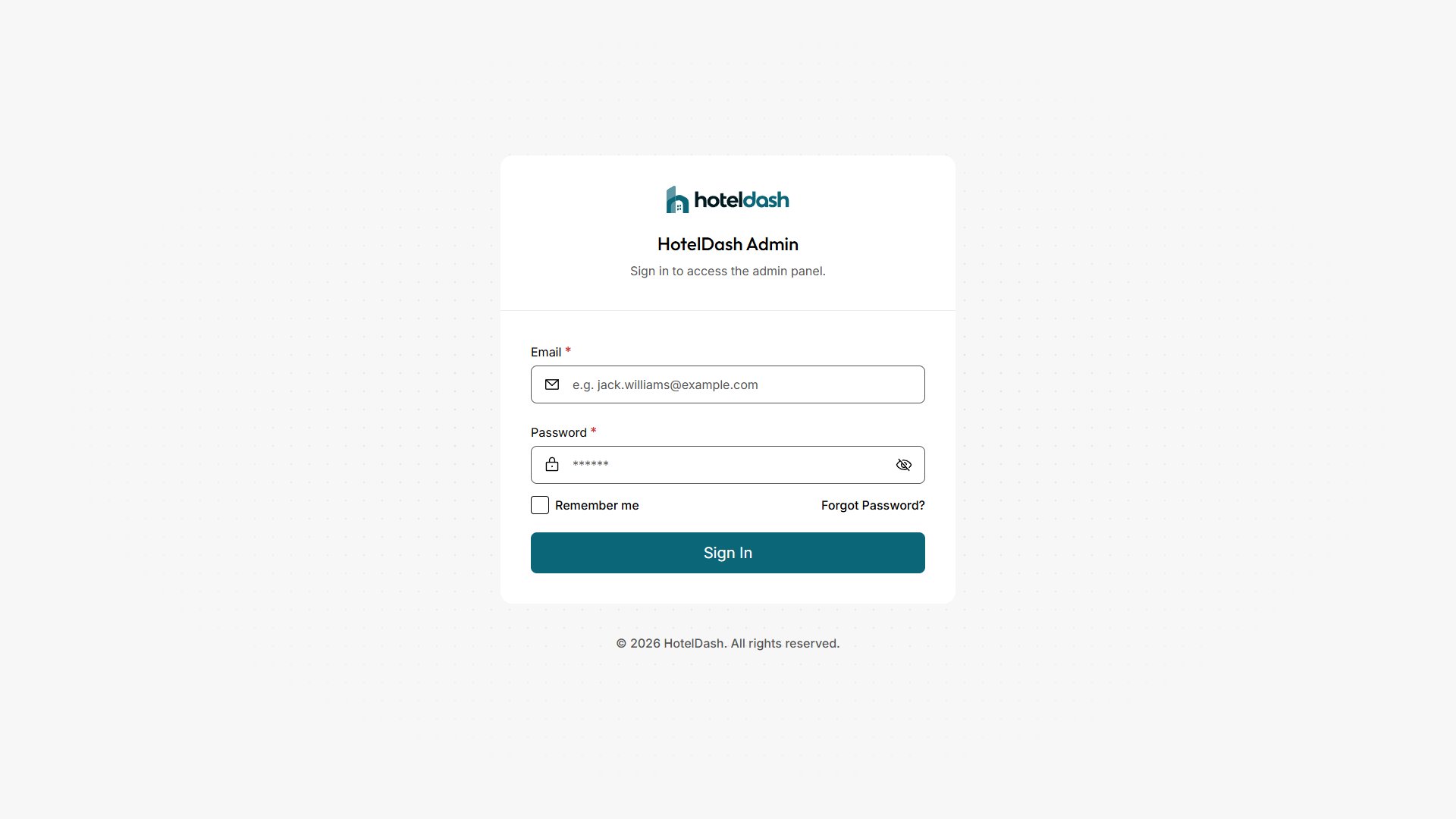
The choice is saved in the browser (localStorage keys hoteldash:theme and hoteldash:lang) and applies to every page. A theme change also follows along in other open tabs. Sign-in and onboarding pages have no header but use the saved choice.
How it works
| Markup | Result |
|---|
<html data-theme="dark"> | Always dark |
<html data-theme="light"> | Always light |
No data-theme | Follows the system (prefers-color-scheme) |
<html lang="ar"> | Arabic, right-to-left layout. theme-boot.js sets dir="rtl" for you. |
assets/js/theme-boot.js is a small plain script in every page's <head>, before the stylesheet. It reads the saved choice and sets these attributes before the page paints, so there is no flash of the light or LTR layout. assets/js/core/theme.js changes the theme at runtime. Do not set dir by hand: it is worked out from the language.
JavaScript API (assets/js/core/theme.js)
| Function | Returns / does |
|---|
getTheme() | The choice: 'light', 'dark' or 'system' |
getResolvedTheme() | What is on screen now: 'light' or 'dark' |
setTheme(value) | Applies and saves 'light', 'dark' or 'system' |
initThemeControls(root) | Wires the theme menu inside root (the header does this for you). Markup: [data-theme-menu] with [data-theme-option="light|dark|system"] items, [data-theme-icon]. |
import { setTheme, getResolvedTheme } from '../core/theme.js';

setTheme('dark');
document.addEventListener('hd:theme:change', (event) => {
  console.log(event.detail.theme, event.detail.resolved);   // 'system', 'dark'
});
The event fires on document. It also fires when the system switches while System is chosen. Listen for it if your own code draws with fixed colors; the built-in charts use the CSS color tokens and change on their own. The browser bar color (theme-color meta) follows the theme. The language and direction functions are in assets/js/core/i18n.js (see Languages).
Set a default for the whole site
A visitor's saved choice always wins. The default is what people see before they pick anything.
- Attribute on
<html>: add data-theme="dark" to the <html> tag of every page. A saved Light / Dark still overrides it. A visitor who picks System follows their device setting.
- In
theme-boot.js (recommended, one file): give the saved value a fallback. All three theme choices then work after a reload.
// assets/js/theme-boot.js
var theme = read('theme') || 'dark';   // default theme: 'light', 'dark' or 'system'
if (theme === 'light' || theme === 'dark') root.setAttribute('data-theme', theme);
else if (theme === 'system') root.removeAttribute('data-theme');
For a right-to-left default, make Arabic the default language (see Set the default language). To hide a menu, remove its markup from components/layout/header.html.
Dark colors
Components use only the semantic color tokens (--color-surface, --color-text, --color-border, --color-primary-soft…). assets/css/tokens/theme-dark.css gives those tokens dark values; components have no dark rules of their own. To change a dark color, edit it there.
The file has two blocks with the same values: :root[data-theme='dark'] (Dark chosen) and :root:not([data-theme='light']) inside @media (prefers-color-scheme: dark) (System on a dark computer). Change both. Printing always uses the light theme.
Keep text readable: check contrast (4.5:1 or more) of text tokens on --color-surface and --color-page. In dark mode filled buttons use dark text (--color-text-inverse) on a light brand color.
Right-to-left details
- CSS uses logical properties (
margin-inline-start, inset-inline-end, text-align: start), so the sidebar, menus, tables and forms mirror without extra rules. Use them in your own styles.
- Arrow and caret icons that point left or right (
arrow-left, caret-right…) are mirrored under [dir=rtl] (assets/css/base/global.css). Add data-no-flip to an icon that must keep its direction: <hd-icon name="arrow-right" data-no-flip></hd-icon>.
- Charts and one-time code boxes (OTP) stay left to right on purpose: chart axes and digit order do not mirror.
- Email, phone and web address fields (
type="email", "tel", "url") stay left to right in a right-to-left page (assets/css/base/typography.css). Phone numbers in the page text also keep their left-to-right order.
Design System
Languages
HotelDash comes in English and Arabic. The language menu in the header (translate icon) switches between English and العربية. The page reloads in the new language. Arabic turns the layout right to left, uses the Arabic font and shows dates in Arabic.
The choice is saved in the browser (localStorage key hoteldash:lang) and applies to every page. Sign-in and onboarding pages have no header but use the saved choice.
Set the default language
A visitor's saved choice always wins. The default is what people see before they pick a language.
- Attribute on
<html>: write lang="ar" on the <html> tag of every page. theme-boot.js reads it as the site default.
- In
theme-boot.js (one file): give the saved value a fallback.
// assets/js/theme-boot.js
var lang = read('lang') || 'ar';   // default language: 'en' or 'ar'
You do not set dir: Arabic gets dir="rtl" on its own.
How translation works
Pages, components and page modules are written once, in English. In Arabic, assets/js/core/i18n.js loads the dictionary and replaces the English text on the page with its translation. It also translates text added later (table rows, modals, toasts, menus).
- The dictionary is keyed by the English text, exactly as it appears on the page (extra spaces do not matter).
- It translates the text in the page, these attributes:
placeholder, aria-label, title, alt, data-placeholder, and the page title. The title is split on " — " and each part is translated, so All Bookings — HotelDash needs only All Bookings.
- Text with no Latin letters is left as is.
theme-boot.js hides an Arabic page until it is translated, so English never flashes. It shows the page after 3 seconds at most, even if a script fails (class i18n-pending).
File (assets/i18n/ar/) | Covers |
|---|
index.js | Joins the five files below. This is the file i18n.js loads. |
common.js | Layout, shared components, statuses, months, validation, toasts, shared patterns |
bookings.js | Dashboard, bookings, rooms, reviews |
properties.js | Properties, guests (customers, refunds, queries), events |
content.js | Content, locations, marketing |
admin.js | Staff, reports, settings, profile, sign-in, onboarding, 404 |
Each file exports { strings, patterns }:
export default {
  strings: {
    'All Bookings': 'جميع الحجوزات',              // exact English text → translation
  },
  patterns: {
    '{count} selected': 'تم تحديد {count}',       // {name} matches any text
    '{label} is required.': 'حقل {label} مطلوب.',
  },
};
- strings are fixed texts. If two files have the same English text, the later file in
index.js wins.
- patterns are texts with a changing part. Each
{name} matches any text, and that part is translated again when the dictionary has it. The patterns of the area files are tried before those of common.js, so a general pattern (Edit {name}) never takes text that an area pattern is meant for.
Translate text you add
- Write the text in English in your page, component or module, as usual.
- Add the English text and its Arabic to the dictionary file of that area in
assets/i18n/ar/. Use common.js for text shared by many pages.
- For text with a number or name inside, add a pattern:
// assets/i18n/ar/bookings.js
strings: {
  'Late Check-outs': 'المغادرات المتأخرة',
},
patterns: {
  '{n} rooms ready': '{n} غرف جاهزة',
},
Text that never reaches the page (for example a confirm() message) can be translated in code with t(text) from assets/js/core/i18n.js. It returns the English text when there is no translation.
Find untranslated text
Open a page in Arabic, use it (open its menus, modals and tabs), then run this in the browser console:
(await import('/assets/js/core/i18n.js')).getMissing()
It lists the English texts on that page that the dictionary does not have yet. The path works when the HotelDash-HTML folder is the root of your server. If the site runs in a subfolder, put the subfolder in front, for example '/hoteldash/assets/js/core/i18n.js'.
What is not translated
| Text | Why |
|---|
| Names, emails, ids, brand names (HotelDash) | They are data, not interface text, so they have no dictionary entry and stay as written. |
Content inside [data-i18n-skip] or translate="no" | Add one of these to keep text in English. The language menu items use translate="no". |
code, pre, noscript, the content of a textarea, editable areas (contenteditable) and the rich text editor (.ql-editor) | This is code or text people type. A textarea placeholder is still translated. |
The UI Components page (pages/components.html) | Its content area has data-i18n-skip, so the component library stays in English. The sidebar and header are translated. |
| PDF invoices | They stay in English. The built-in PDF fonts (Helvetica) have no Arabic letters (assets/js/utils/pdf.js). |
| This documentation | English only. |
The Arabic translations are ready to use. If you change or add translations, have a native speaker review them before you go live.
Add another language
- Add it to
LANGUAGES in assets/js/core/i18n.js with code, name, dir and locale.
- Create
assets/i18n/<code>/index.js that exports { strings, patterns }. Copy the Arabic folder as a start.
- Add an option to the language menu in
components/layout/header.html.
- For a right-to-left language, add its code to
RTL in assets/js/theme-boot.js.
- If the language uses other letters, add a font for them (see Typography).
// assets/js/core/i18n.js
export const LANGUAGES = [
  { code: 'en', name: 'English', dir: 'ltr', locale: 'en-US' },
  { code: 'ar', name: 'العربية', dir: 'rtl', locale: 'ar-u-nu-latn' },
  { code: 'fr', name: 'Français', dir: 'ltr', locale: 'fr-FR' },
];

<!-- components/layout/header.html, inside #header-lang-menu -->
<button type="button" class="dropdown__item" role="menuitemradio" aria-checked="false"
        data-lang-option="fr" lang="fr" dir="ltr" translate="no">Français</button>

// assets/js/theme-boot.js (right-to-left languages only)
var RTL = ['ar', 'he'];
JavaScript API (assets/js/core/i18n.js)
| Function | Returns / does |
|---|
LANGUAGES | The languages: [{ code, name, dir, locale }] |
getLang() | The current language: 'en' or 'ar' |
setLang(code) | Saves the choice and reloads the page in that language |
getLocale() | The Intl locale for dates and numbers |
t(text) | The translation of one English text, or the text itself |
getMissing() | English texts on this page that have no translation |
initI18n() | Loads the dictionary and translates the page (app.js does this for you) |
initLanguageControls(root) | Wires the language menu inside root (the header does this for you). Markup: [data-lang-option="en|ar"] items. |
Design System
Icons
All icons are SVG and are used through one element:
<hd-icon name="bed"></hd-icon>                       <!-- decorative -->
<hd-icon name="bell" size="24" label="Notifications"></hd-icon>   <!-- announced -->
- Phosphor icons: use any name from phosphoricons.com in kebab-case (
caret-right, calendar-check). They are bundled in assets/libs/phosphor/. Only the icons a page uses are downloaded.
- Custom icons: SVG files in
assets/icons/custom/ (logo, flags, property types). To add one, save my-icon.svg there, use fill="currentColor" where it should follow the text color, and add 'my-icon' to CUSTOM_ICONS in assets/js/core/icons.js.
- Icons take the text color (
currentColor). Set the size with the size attribute: 16, 18, 20, 22, 24, 28, 32, 40 or 48.
- Icon-only buttons need an
aria-label on the button.
Design System
Responsive Behavior
| Width | Layout |
|---|
| 1280px and up | Fixed sidebar. The header button collapses it to an 80px icon rail (remembered per browser). |
| 768–1279px | Sidebar opens as a drawer from the menu button. Grids drop to fewer columns; wide tables scroll sideways. |
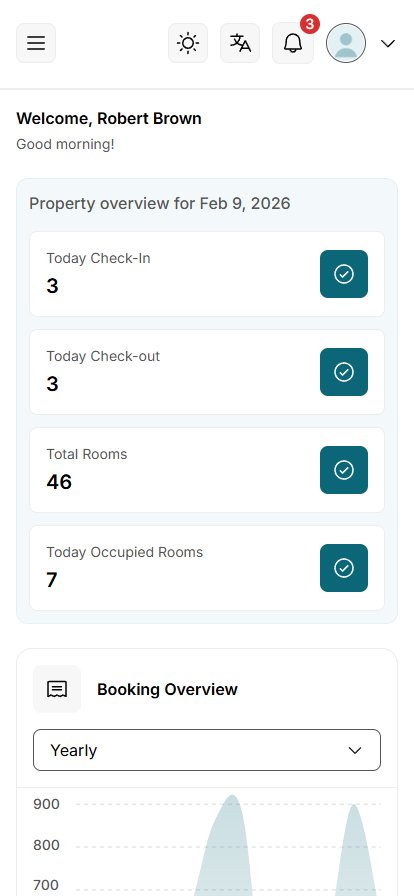
| Under 768px | Mobile: tables become stacked cards, form modals open as bottom sheets, filters fold behind a button where set, touch targets are at least 44px. |
Breakpoints are written as @media (min-width: 768px) / (max-width: 767.98px), 1024px and 1280px. Mobile table layout is set per column with the mobile* options of the DataTable.
Data
Demo Data
Demo data lives in assets/data/, one file per area (bookings, rooms, customers, reports…). Pages never import it directly. They call a service in assets/js/services/, which returns the data through demoResponse():
- Data arrives after a short delay (250ms) as a Promise, like a real request.
- Each call gets a copy, so a page cannot change the source by accident. Create, edit and delete actions change the in-memory data until the page reloads.
- The branch picked in the header changes the demo numbers and rows, and the country sets the currency. With a real API, send
getWorkspace().branch.id with each request instead.
Data
Demo Login & Simulation
HotelDash is a front-end template. There is no server and no database. Everything that looks like a request is simulated in the browser.
Demo login
| Screen | What works |
|---|
Sign in (pages/auth/login.html) | Any valid email address and any password. It then opens Two-Factor Authentication. |
Two-factor and OTP (two-factor.html, otp-verify.html) | Any 6-digit code. |
| Forgot password | Any valid email address. |
New password (new-password.html) | Any password of 8 or more characters; both fields must match. |
Add ?state=error to an auth page URL to see its failure message. Remember me keeps only the email address in the browser, never the password.
To see the demo in Arabic, pick العربية in the language menu in the header. The layout turns right to left. Sign-in pages follow the saved choice (see Languages).
What is simulated
- Sign-in: the forms are validated and the next screen opens. No account is checked and no session is created.
- Data: comes from
assets/data/ through the services, after a 250ms delay. Create, edit and delete change the data in memory only; a reload brings back the original data.
- Demo date: the demo “today” is fixed to 9 February 2026 in
assets/js/core/demo-date.js (DEMO_TODAY). Today's check-ins, active promo codes and banners, review periods and “last active” are worked out from it, so the demo looks the same whatever day you open it. With a real API, use the server's date instead.
- Uploads: images are previewed in the browser only and are not uploaded anywhere. With a real API, send the file from the upload's input and save the URL your server returns (see
assets/js/modules/shared/images.js).
- PDF invoices and CSV exports: generated in the browser (
assets/js/utils/pdf.js, invoice.js, csv.js) from the data on screen. Invoices are in English in both languages.
- Notifications, emails and push messages: the forms work, but nothing is sent.
Do not use the demo sign-in to protect a live site. Real authentication, sessions and permissions must be done by your backend (see API Integration).
Data
UI States
Every table, card and chart has loading, empty and error states. Add a query parameter to any page URL to see them:
| URL | Shows |
|---|
pages/bookings/all-bookings.html | Normal demo data |
…?state=loading | Skeletons and loaders (requests never finish) |
…?state=empty | Empty states with their call to action |
…?state=error | Error states with Try again |
pages/components.html shows all states side by side. The logic is in assets/js/core/ui-state.js and assets/js/services/request.js; it has no effect once services call a real API.
The Dashboard also has a first-run view: pages/dashboard/dashboard.html?view=setup shows the Platform Setup Checklist.
Data
API Integration
Pages only talk to service functions. To connect your backend, change the service function body. Pages, components and modules stay as they are.
The services in assets/js/services/ are the full API layer: some functions (for example getRooms, getBranches, getStaffById) are not called by the demo pages yet, so every resource already has a matching function when you connect your backend.
Rich text from the editor (blog articles, policies) is shown through sanitizeHtml() in assets/js/utils/sanitize.js, which keeps formatting and removes scripts and event handlers. Clean the HTML on your server as well before you store it.
Before (demo)
// assets/js/services/customers-service.js
import { demoResponse } from './request.js';
import { customers } from '../../data/customers.js';

export const getCustomers = () => demoResponse(customers, { vary: 'rows' });
After (your API)
// assets/js/services/api.js — one place for the base URL, auth and errors
const API_URL = 'https://api.example.com';

export async function api(path, { method = 'GET', body } = {}) {
  const response = await fetch(`${API_URL}${path}`, {
    method,
    headers: { 'Content-Type': 'application/json', Authorization: `Bearer ${getToken()}` },
    body: body ? JSON.stringify(body) : undefined,
  });
  if (!response.ok) throw new Error(`${method} ${path} failed (${response.status})`);
  return response.status === 204 ? null : response.json();
}

// assets/js/services/customers-service.js
import { api } from './api.js';
import { getWorkspace } from '../core/workspace.js';

export const getCustomers = () => api(`/customers?branch=${getWorkspace().branch.id}`);
export const setCustomerStatus = (id, status) => api(`/customers/${id}`, { method: 'PATCH', body: { status } });
Checklist
- Return the same shape the demo data has (open the matching file in
assets/data/), or map your response to it inside the service.
- Throw on failure. Tables, charts and
loadSection() catch the error and show the error state with Try again.
- Return an empty array for an empty list. Empty states then show on their own.
- Return
null from a get…ById() service when the record does not exist. The detail page then shows its not-found state.
- For a refused request (validation, conflict), throw an error with a
userMessage (see rejectWith() in request.js). showErrorToast() shows that text to the user.
- Use dates from your server. The demo “today” in
assets/js/core/demo-date.js is only for the demo data.
- Move filtering, sorting and paging to the server when lists are large; the DataTable accepts any
fetchRows function.
- When every service uses your API, delete
assets/data/ and demoResponse().
Sign-in screens are front-end only. They validate the form and move to the next screen (see Demo Login & Simulation). Real authentication, sessions and permissions must be done by your backend. Never put secrets or API keys in front-end code.
Data
Installable App (PWA)
HotelDash can be installed like an app (desktop and phone home screen) and opens the pages you already visited without a connection.
| File | What it does |
|---|
manifest.webmanifest | Name, colours, start page (Dashboard), icons and shortcuts (All Bookings, Availability Calendar, Today's Check-ins). Every page links it in its <head>. |
sw.js | Service worker. Saves the app shell on install; pages load from the network first and from the saved copy when offline; other files are served from the cache and refreshed in the background. |
offline.html | Shown for a page that was never opened while online, with Try again and a link to the Dashboard. |
assets/icons/app/ | App icons: icon-192.png, icon-512.png, maskable-512.png (logo inside the middle 80%), apple-touch-icon.png (180px). |
assets/js/core/pwa.js | Registers the service worker, shows Install app in the profile menu when the browser can install it, and an Update available toast when a new version is ready. |
- Your brand: change
name, short_name and theme_color in the manifest and the theme-color meta tag, and replace the PNGs in assets/icons/app/ with your logo in the same sizes.
- Every release: change
VERSION at the top of sw.js. Visitors then get the Update available toast, and old saved files are removed.
- While developing: saved files can be one reload behind. In Chrome DevTools open Application → Service workers and tick Update on reload.
- Turning it off: remove
initPwa() from assets/js/app.js; installed copies stop updating after the next visit.
Service workers need https:// (or http://localhost). On file:// the template works as before, without install or offline.
Reference
Accessibility & Motion
- Semantic HTML landmarks, a skip link, visible focus rings, and labels on every form field and icon-only button.
- Menus, selects, tabs, date pickers and modals work with the keyboard (arrows, Enter, Escape). Modals trap focus and return it to the trigger.
- Text and badges meet WCAG 2.1 AA contrast in the light and the dark theme.
- Animations (entrances, chart drawing, count-up numbers, micro-interactions) use the
--duration-* and --ease-out tokens. They are turned off when the visitor's system asks for reduced motion.
Reference
Browser Support
Latest two versions of Chrome, Edge, Firefox and Safari (macOS and iOS), plus Chrome for Android. Internet Explorer is not supported. The template uses ES modules, CSS custom properties, color-mix(), CSS logical properties (for right-to-left) and Intl.
Reference
Dependencies
No framework. Two libraries are bundled locally, so the template works offline and makes no requests to a CDN.
| Library | Version | License | Location | Used for |
|---|
Phosphor Icons (@phosphor-icons/webcomponents) | 2.1.5 | MIT | assets/libs/phosphor/ | All standard icons |
| Lit (inside the Phosphor package) | lit-html 3.1.4, lit-element 4.0.6, reactive-element 2.0.4 | BSD-3-Clause | assets/libs/phosphor/lit/ | Renders the Phosphor icon elements |
| Quill | 2.0.3 | BSD-3-Clause | assets/libs/quill/ | Rich text fields (blogs, legal policies). Loaded only on those pages. |
Charts, the date picker, the DataTable, CSV export, PDF invoices and translation (assets/js/core/i18n.js) are written for HotelDash and need no library.
Fonts are bundled too:
Reference
Credits
| Asset | Source | License |
|---|
| Inter font | rsms.me/inter | SIL Open Font License 1.1 (assets/fonts/inter/LICENSE.txt) |
| Outfit font | github.com/Outfitio/Outfit-Fonts | SIL Open Font License 1.1 (assets/fonts/outfit/LICENSE.txt) |
| IBM Plex Sans Arabic font | github.com/IBM/plex | SIL Open Font License 1.1 (assets/fonts/ibm-plex-sans-arabic/LICENSE.txt) |
| Phosphor Icons | phosphoricons.com | MIT (assets/libs/phosphor/LICENSE) |
| Lit | lit.dev | BSD-3-Clause (assets/libs/phosphor/LICENSE-lit.txt) |
| Quill | quilljs.com | BSD-3-Clause (assets/libs/quill/LICENSE) |
| Logo, custom icons, flags, placeholders | Made for HotelDash | Covered by the HotelDash license |
| Demo images (rooms, properties, events, content, avatars, map) | Made for HotelDash: image placeholders, see assets/images/CREDITS.md | Covered by the HotelDash license. Replace them with your own photos. |
Reference
License
HotelDash is licensed under the license you accepted when you bought it. The full terms are on the page where you bought HotelDash. See LICENSE in the package root. Third-party libraries and fonts keep their own licenses, listed in Credits.
Reference
Changelog
Version 1.0.0
- Initial release: 76 pages, design tokens from Figma, 40+ HTML components.
- Component library: 97 components in 12 groups with examples, copyable code, API tables and accessibility notes.
- Reusable DataTable (editable cells, drag-and-drop rows, expanding rows), SVG charts, event calendar, virtual list, form patterns, date pickers, modals, toasts, wizard, uploads, rich text editor.
- Installable app (PWA) with offline support for visited pages.
- Light, dark and system themes, switched from the header and saved in the browser.
- English and Arabic, with a language menu in the header; Arabic switches the layout to right-to-left.
- Demo data that matches across pages, set around one demo date (9 February 2026).
- Readable
style.css and minified style.min.css, both built by node build-css.mjs.
- Branch and country switch, collapsible sidebar, loading / empty / error states, PDF invoices, CSV export.
- Responsive from 375px to 1920px; keyboard and screen reader support; reduced-motion support.
The full history is in CHANGELOG.md.
Reference
FAQ
The page is blank or shows a notice about a web server.
Open it through a local server (see Installation), not by double-clicking the file. Browsers block ES modules on file://. If JavaScript is turned off, the page says it needs JavaScript.
How do I sign in to the demo?
Use any valid email and any password, then any 6-digit code. See Demo Login & Simulation.
A style or icon sometimes fails to load with python -m http.server.
Python's built-in server is meant for quick tests and can drop requests when a page loads many files at once. Reload, or use npx serve . or VS Code Live Server for day-to-day work.
I changed a file but the browser shows the old version.
Hard-reload: Ctrl+Shift+R (Windows/Linux) or Cmd+Shift+R (macOS).
Can I use it with React, Vue or Laravel?
Yes. Copy the CSS (assets/css/) as is; the class names and tokens are framework-free. Use the HTML templates in components/ as the markup for your own components.
Some text stays in English on an Arabic page.
The dictionary has no entry for that text yet. Find it with getMissing() and add it (see Languages).
How do I remove a page?
Delete the HTML file, its module in assets/js/modules/ (if any), and its sidebar link in components/layout/sidebar.html.
Where do I report a problem?
See Support.
Reference
Support
Thank you for choosing HotelDash. Support covers:
- Answers to questions about how the template works.
- Answers to questions about the features in this documentation.
- Help with defects in the template itself.
- Bug fixes and template updates.
Support does not cover customization work, installing HotelDash for you, connecting it to your own API or third-party services, or problems in code you added. If you need any of that, get in touch and we can discuss it separately.
To request support, use the support or contact option on the HotelDash product page where you bought it. Include the page, your browser and its version, the steps that show the problem and any error from the browser console. It helps us answer much faster.
| Author | WRTeam Design |
|---|
| Response time | Within 1–2 business days, Monday to Friday |
|---|
Live chat support
Alongside the product page support, we offer direct chat support over Microsoft Teams if you would like to talk something through.
Chat support is offered in addition to, not in place of, the support on the product page. Replies outside that channel are best effort.